Assets are individual serialized instruments associated with a Type. The Asset may or may not be subject to service while being tracked in MET/TEAM.
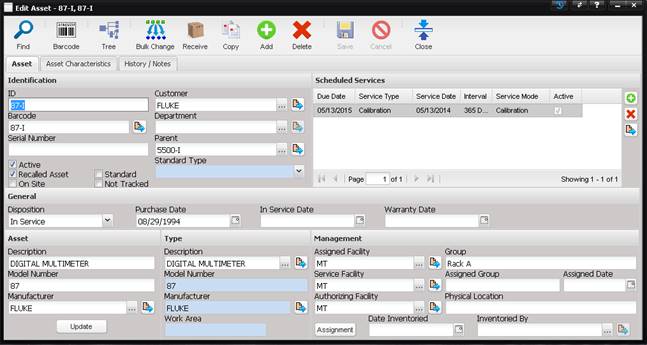
The Barcode button allows for printing the Asset barcode for the selected Asset.
The Tree button opens a view into the asset hierarchy, showing parent and child assets and can be used to navigate up or down the hierarchy and load the selected asset.
The Bulk Change button allows for updating of multiple Assets at one time.
The Receive button performs the receiving functionality for the Asset including creating a Work Order. The newly created Work Order is displayed. The button is enabled, only if the asset has no open Work Order. Or, if the System Default “Receiving – Allow Multiple Work Orders” is enabled.
The Copy button allows for copying the current Asset. When this button is selected, the Add Asset* screen is opened. The border of the Add Asset* screen is yellow indicating that this screen is the copy. The border stays yellow until the screen is closed. The ID and Barcode are prefilled based on the System Default. The Serial Number, History and Tool Assignments are not copied. All other Asset information is copied. The Scheduled Services is viewable once the Save button is pressed.