The Asset
tab displays Asset information and the next services that are scheduled to be
performed.
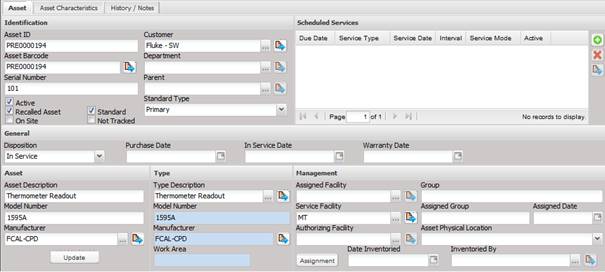
· Asset ID – The Customer’s identifier for the Asset. This identifier is not required to be unique or the same as the Barcode, however this is recommended whenever possible. This field is typically used on reports provided to customers.
· Asset Barcode – The Lab’s unique identifier for the Asset. No two Assets can have the same barcode. If the user attempts to enter an existing barcode, a warning message appears and requires the user to enter a new barcode. This field is typically used in reports for use inside the Lab.
o The Barcode can be changed by selecting the Quick Link button.
o The Barcode is created using a counter that is incremented each time a new barcode is generated. The Prefix (if Active) and the Suffix (if Active) is appended to the number to form the complete barcode. If the Barcode total length exceeds the System Defaults "Barcode - Length", the barcode is truncated from the left side of the barcode. To ensure that the barcode isn't truncated, set the System Defaults "Barcode - Length" to a number large enough to account for the barcode counter growing. The Prefix and Suffix settings are also controlled by System Defaults: Barcode – Prefix and Barcode - Suffix.
·
Serial
Number – The manufacturer’s serial number.
Customer – The company or entity
that owns the Asset. The default Customer is initialized to the default
facility of the user logged in.
o The company can be changed by selecting the “…” button.
o The company can be viewed by selecting the Quick Link button.
· Department – Based upon a system default this information represents one of two elements.
o If the system default “DepartmentBypass” is inactive, the department must be a child facility of the Customer.
o If the system default is active, the Department does not have to be a child facility of the Customer. The inactive state most commonly used to assign Assets to facilities that belong to an Asset pool or tool crib. The department would then indicate the facility that currently has possession of the Asset so the recall notice would go to the correct facility.
o The department can be changed by selecting the “…” button.
o The department can be viewed by selecting the Quick Link button.
· Parent – If not empty would indicate this Asset is part of a system or a child of another Asset.
o The parent can be changed by selecting the “…”button.
o The parent can be viewed by selecting the Quick Link button.
· Standard Type – Classifies the standard. Can only be selected if the Asset is marked as a Standard.
· Active – If checked, the Asset is in an Active state and will be included when performing a typical search or Find. Normally, an Asset is only set as NOT active once it has been retired or disposed of. Assets that are NOT active are not included on the standard MET/TEAM Recall reports.
· Recalled Asset – If checked the Asset is included on the Recall reports.
Note: The standard Recall reports will exclude any assets that
have open Work Order records, regardless of the Recalled Asset state. There is
no need to change this or the Disposition when a Work Order is created.
· On Site – if checked, the Asset needs to have maintenance performed on site. Used for any item that cannot be sent in to the servicing facility.
· Standard – If checked the Asset is a maintenance standard and can be classified by the Standard Type.
· Not Tracked – If checked, the Asset is not tracked as a part of MET/TEAM. This Asset would not show up on recall or inventory reports. The Asset would exist in the system but not be accounted for. This kind of Asset usually pertains to expendable items such as screws, nuts/bolts, rubber gloves or un-serialized Assets such as desks, chairs, file cabinets, etc.
Asset and Type Sections
The Asset area is the local or customer Description, Model Number, and Manufacturer.
The Type area is the system or fact data Description, Model Number, Manufacturer, Authority, and Area. This data usually comes from an Authority on the data such as the manufacturer.
The different references allow the Service facility to have a general process for an Asset type. The Service facility may not care who the manufacturer or model is, they just calibrate all of the same “type” the same way. However, the customer needs to know the specific model. By allowing MET/TEAM to track both data aspects, the Service facility does not have to create a different type of record for each kind of model reducing data maintenance, labor, and errors within the Service facility. Additional data elements with the same functionality exist on the Asset Characteristics tab.
· Description – The description of the Asset.
· Model Number – The manufacturer’s model designation of the Asset‘s characteristics and capabilities.
· Manufacturer – The company that created the Asset.
· Work Area – The Area of the Service facility that would normally do the work on the Asset. Area may be an area such as “Electronic” or an area may be defined as a room or location. This information is used as a default to assist the MET/TEAM user in doing work load planning.
· Update button – Used to update the Asset data with the current Type data.
General Section
· Disposition – The current state of the Asset. This value is intended to be static and not frequently changed based on smaller events such as coming into the Lab for service. Therefore, the standard Dispositions are rather broad, In Service, Out of Service, Lost, and Scrapped. While in the Lab, the Work Order has its own status such as In Work, Needs Repair, Awaiting parts, Awaiting Approval, etc.
Note: The standard Recall reports will exclude any assets that have
open Work Order records, regardless of the Disposition state. Therefore, there
is no need to change the Disposition when a Work Order is created.
· Purchase Date – The date the Asset was purchased.
· In Service Date – The date the Asset was made Active and placed into service.
· Warranty Date – The date the warranty for this Asset expires.
Management Section
· Assigned Facility – The Facility that assigns the Assets work. This Facility schedules this Asset as a part of the work load for itself or another Facility.
· Service Facility – The Facility that performs the service.
· Authorized Facility – The Facility that authorized the funding for the work to be done on this Asset.
Note: Facilities that are not listed in one of these three
categories do not have the ability to do work on this Asset.
· Group – Used for reporting purposes and allows this Asset to be grouped with other Assets.
· Assigned Group – The name of the group this Asset is assigned to.
· Assigned Date – The date the Asset was assigned to the group.
· Physical Location –The last known physical location of the Asset.
· Date Inventoried – The date the Asset was last inventoried.
· Inventoried By – The person who last inventoried this Asset.
The “Assignment” button is used to view the Tool Assignment for this Asset. See Tool Assignment for a description of this functionality.
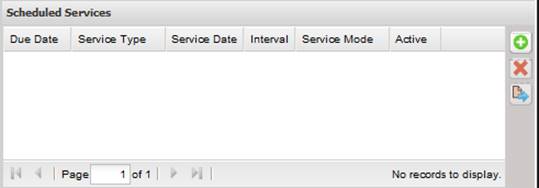
The Scheduled Services grid contains service information about the Asset. Use the horizontal scroll bar to view the other service information. For more information on Service Modes and Service Types, see the Setup menu Services submenu.).
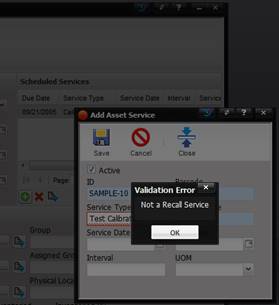
When adding a Scheduled Service of Service Mode ‘Calibration’, only Service Modes designated as ‘Recalled’ can be used. If a ‘Calibration’ Service Mode that is not designated as ‘Recalled’ is used, an error message is displayed.
Only one record of Service Mode ‘Calibration’ can be displayed in this grid at a time. (A service of Service Mode ‘Calibration’ can be Service Type ‘Calibration’, ‘Cal/Repair’, or as setup by your System Administrator. If an attempt is made to add more than one record of Service Mode ‘Calibration’, a validation error is displayed.)
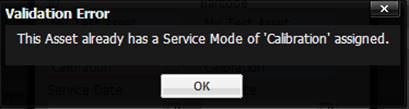
This validation error informs the user that only one record of Service Mode calibration can be in the Scheduled Services grid.
The service information about a calibration is displayed from the most recent service performed of Service Mode ‘Calibration’.
For example, the Scheduled Service in the screen shot above is from the highlighted row on the History tab for this Asset as shown in the screen shot below. This service is displayed in the Scheduled Services grid as it is the most recently completed calibration for this Asset.
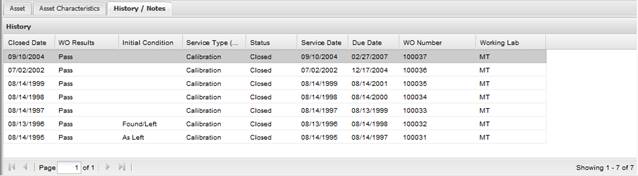
Note: Only one service of
Service Mode ‘Calibration’ can exist at one time. This service information is
added to the Scheduled Services grid when the Work Order is completed and
returned (closing the Work Order) for the Asset.
Service Mode of ‘Calibration’ cannot be added. Service Mode of ‘Calibration’ cannot be deleted from the Scheduled Services grid.
· Due Date – The date the Asset is due for maintenance.
- If the calculated Due Date falls on a Calendar Non Workday, the Due Date is adjusted backwards to the next workday. For example, if the calculated Due Date was 8/1/2014 and 8/1/2014 has been marked in the Calendar as a Non Workday, the Due Date is recalculated to 7/31/2014.
- When using MET/CAL, the date shown here is used to determine if the Asset used as a standard is in calibration.
· Service Type – The service type that was performed.
· Service Date – The next date the Asset is due for this type of service.
· Interval – Indicates the service interval.
· Service Mode – The mode of service performed.
· Active – Indicates if the Asset is active.