The Batch button at the top of the Work Order screen is for changing information on multiple Work Orders at one time. The Work Order that is being displayed is the “master” Work Order. The information on this Work Order will be used to update other Work Orders.

Note: Only Work Orders
with the matching “Procedure Used” and a Working Lab that matches the currently
logged in Facility can be updated using the Batch button.
When the Batch button is selected, the Find screen is displayed.
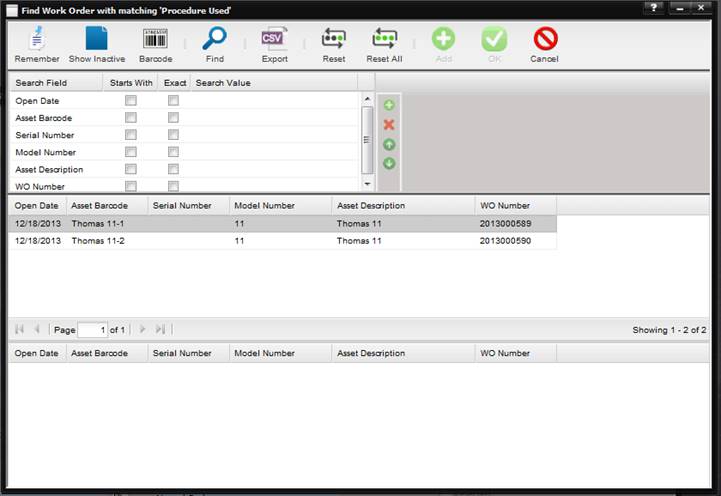
When the Find button is selected on the Find screen, only the Work Orders with matching “Procedure Used” and the “Working Lab” are displayed. Double click the Work Orders that are to be changed and select the OK button.
The Batch Process Work Orders screen is displayed listing the Work Orders chosen to be updated to match the “master” Work Order.
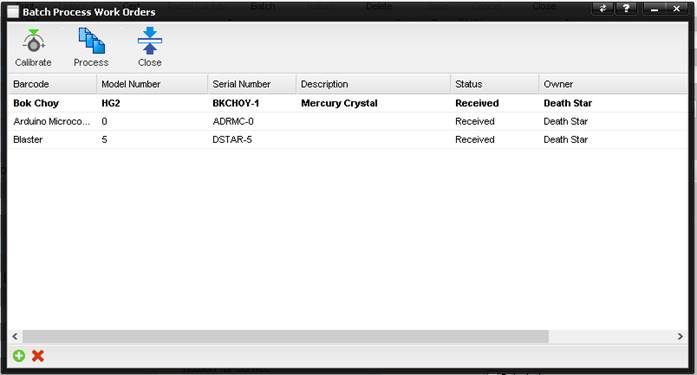
To add Work Orders, select the “+” button to add other Work Orders.
To delete Work Orders, highlight the Work Order by clicking the desired Work Order in the grid and selecting the “X” button.
nCategoryUID
nSubCategoryUID
nAssignedTechUID
nTechnicianUID
nQCApprovedByUID
nReturnedByUID
nSubContractorUID
nCalendarUID
nSubContHours
nSubContCost
nSubContLabCost
nCost
tDelayDate
cInitialCondition
cServiceReason
cCallSheetType
cStickerType
cCallSheetStatus
cInterval
cIntervalUOM
cTemperature
cHumidity
cPressure
cLocation
cArea
cCertFormat
tMaintDate
tMaintNextDate
tQCApprovedDate
tClosedDate
tReturnedDate
nQuantity
nPriority
nTechnicianPriority
lISOCert
lOnSite
lReturnNoMaint
lSubContracted
lOOT
lDelayed
lCancelled
mCallSheetNotes
mAccuracyNotes
mUncertaintyNotes
mSubContractorNotes
mOOTNotes
mStickerNotes
·
The Work Order Log Notes are
copied from the master to each of the dependents.
·
A Work Order Log Notes is
added recording the Batch Process itself to the dependents.
·
Each Labor entry is copied
from the master to the dependents.
·
Each Standard and
Accreditation entry is copied from the master to the dependents.
·
The Extended Data is copied
from the master to the dependents.
·
A Log Notes is added to the
master record recording the Batch Process.
The Calibrate button is enabled if the procedure you have selected is configured to use a Manual Template Data Sheet. When selected, you can perform a batch of calibrations for all of the Assets that were selected from the Find screen.
To begin, select the Calibrate button. The Calibrate screen is displayed.
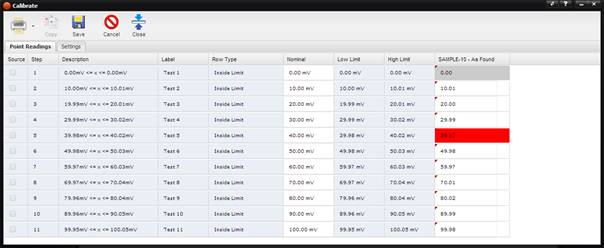
The screen is based off of the Manual Template associated with the selected Procedure. The columns on the right are the Barcodes of the Assets. Enter a UUT Reading for each of the rows for each of the selected Assets.
Note: Be sure to save as
you enter data.
When the Save button is selected, this screen automatically associates the manually entered data with the Assets Work Order and creates a results point record on the Results tab of the Work Order.
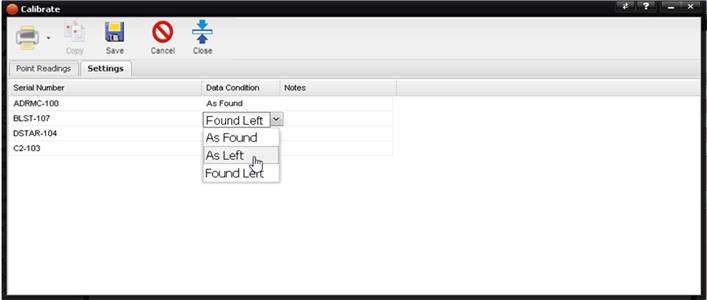
Additionally, the Settings tab can be used to enter the Data
Condition for the Asset results and to enter a Note. This information is saved
with the Calibration data and is unique for each of the Assets.
Note: The Print button is
always disabled during batch calibrations
The Process button performs the batch change process and displays a message box once it completes the operation. The following fields are modified. These are arranged by Work Order sections.
·
Editable Asset Data fields – Service Type(WO)
, Status, QC Approved By, QC Approved Date.
·
Service Tab fields
– QC Approved By, QC Approved Date, Interval, UOM, Sticker Type, Cert Format,
Assigned Tech, Technician, Work Area, Initial Condition, Reason for Service,
Temperature, Humidity, Pressure, On Site, Sub Contracted, ISOCert, Cancelled,
Received OOT, Return No Maint, Rejected.
·
Extended Data Tab fields – Category (WO),
Sub Category (WO), Quantity.
·
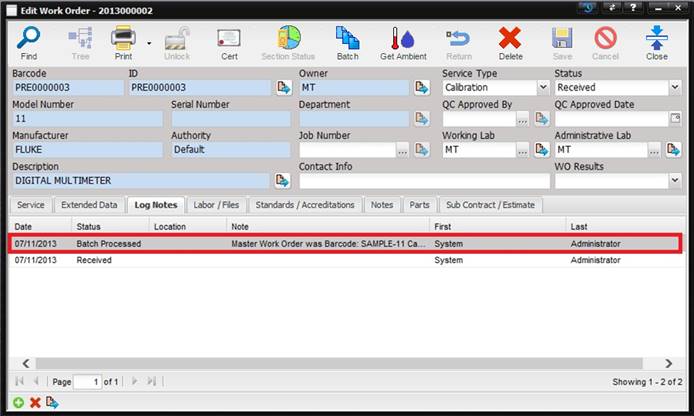
Log Notes Tab fields – A Log Note is added
stating this Work Order was the “master” or which Work Order was used as the
master to update this Work Order.
·
Labor/Files Tab fields – The labor is
updated. The Files are not updated.
·
Standards/Accreditations
Tab – Both the Standards and
Accreditations information are updated.
·
Notes Tab fields
– Accuracy, Uncertainty, Out of
Tolerance, General.
·
Parts Tab fields
– The Parts are not updated.
·
Sub Contract / Estimate Tab fields – Sub
Contractor, Sub Cont Cost, Sub Cont Lab Cost, Sub Cont Hours, Sub Contractor
Notes.
The Close button closes the Batch Process Work Orders screen.