The Get Ambient button at the top of the Work Order screen is for retrieving ambient temperature and humidity data.

For MET/CAL users, the Get Ambient button can be configured to retrieve ambient condition data from your system’s RHT.INI file and populate the Temperature and Humidity fields on Work Orders that have not yet been closed. The Get Ambient button is disabled if the Work Order has been previously closed or if the System Default setting “Work Order – Temperature and Humidity Data” is not active. When the Get Ambient button is clicked, the RHT.INI file specified in the Value field of the System Default setting is accessed.
·
If there is data
for only one sensor in this file, the temperature and/or humidity readings are
read in and used to populate the Temperature and Humidity fields on the Work
Order.
·
If there is data
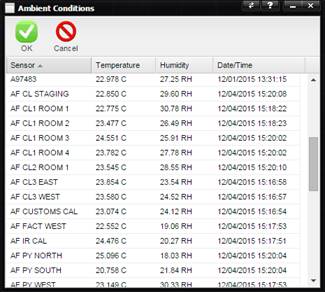
for more than one sensor in this file, the Ambient Conditions screen is
displayed. The Ambient Conditions screen lists all of the sensors with their
current Temperature and Humidity readings (including units if any) and the
date/time that the readings were taken (in local time). Locate and select the
row for the sensor to use to populate the Temperature and/or Humidity fields on
the Work Order and click the OK button. Clicking the Cancel button simply
closes the Ambient Conditions screen.
The Temperature and/or Humidity fields on the Work Order are populated with only the numeric value for the readings. Any units are removed.
When selecting a sensor, make sure the date/time stamp is recent. If the date/time stamp is not recent, the readings in the RHT.INI file may not be getting updated as expected.