To use a Manual Template, the template must be associated with a Procedure and the Procedure must be associated with a Type.
To associate a Manual Template with a Procedure, use the
Maintenance menu Procedures option. An existing Procedure can be opened by
selecting the Procedure from the Find Procedure screen or a new Procedure can
be created by selecting the Cancel button on the Find Procedure screen that is
displayed after selecting the Procedures menu option from the Maintenance menu.
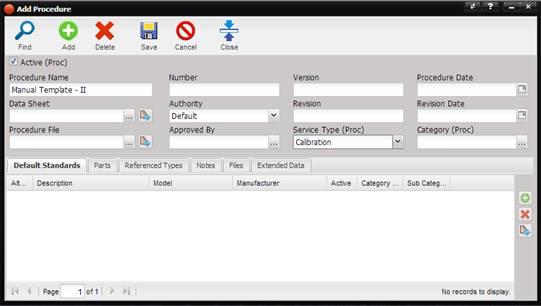
1.
Enter a Procedure
Name (when creating a new Procedure) and Save the Procedure.
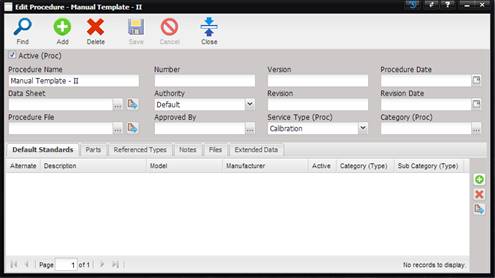
2.
To select a
Manual Template (that was created using the Manual Template option under the
Maintenance menu), use the “…” button next to the Data Sheet field. The Attach
Data Sheet screen is displayed. Select the Find screen to see all Manual
Templates.
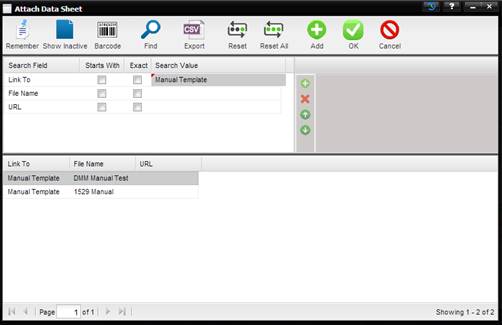
3.
Highlight the
desired Manual Template and select the OK button.
4.
On the Edit
Procedure screen, select the Service Type of “Calibration” or “Cal/Repair”.
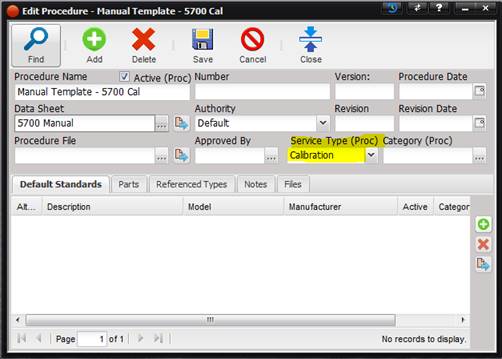
5.
This Procedure
must be associated with the Asset Type. If the Type does not have this Procedure
associated with it (on the Procedures tab of the Type), you will not be able to
‘run’ the Manual Template. To associate the Manual Template, use the “+” button
on the right side of the Procedures tab on the Type screen.
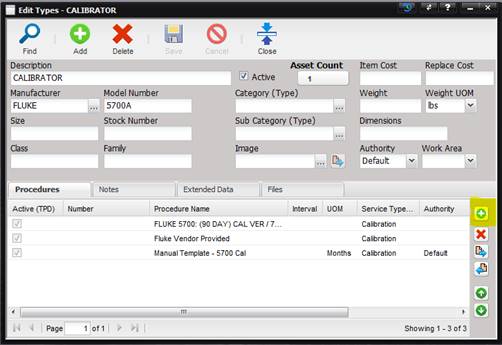
Once the procedure is associated with the Type, any Asset of this Type will now be able to run the Procedure containing the Manual Template specified in the Procedures tab of the Type screen.
6.
Receive the Asset
and open the Work Order created from the receiving process.
7.
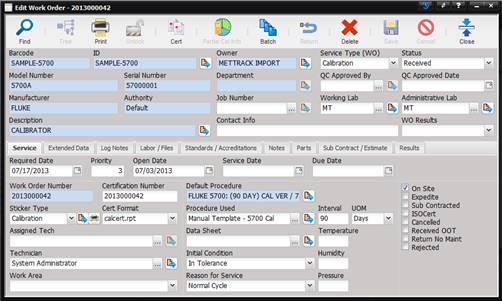
From the Work
Order Service tab select the Procedure to use by pressing the “…” button next
to Procedure Used text field. Select the Procedure that contains the Manual
Template to use.
8.
To run the
Procedure, either select the “…” button next to the Data Sheet field on the
Work Order Service tab or navigate to the Results tab and select the “+” button
below the results grid.
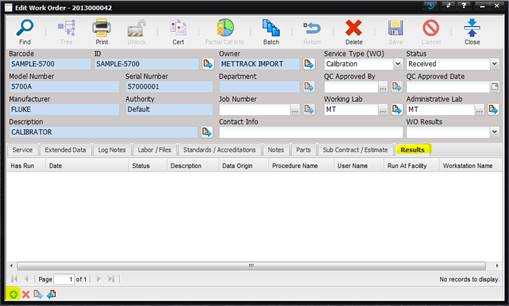
When the “+” button is selected from the bottom left corner of the Results tab or the “…” button next to the Data Sheet field is selected from the Service tab, the Manual Template associated with the selected Procedure is displayed waiting for manual calibration data entry.
Note: The
behavior of the “+” button on the Results tab can be controlled by the “Work
Order – Use Multiple Procedures” System Default.