To manipulate the grid rows or display the Step Wizard, right click anywhere within the grid on the Template Design tab. A menu is displayed. Select the option you want to use.
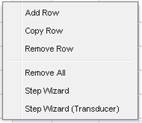
Add Row – Adds or inserts a new row below the currently selected row.
Copy Row – Copies the currently selected row and paste the new row below it.
Remove row – Removes the currently selected row.
Remove All – Removes all rows from the grid, leaving a blank template
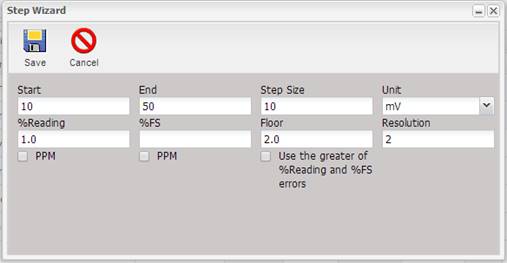
Step Wizard – Displays the Step Wizard screen which automatically generates rows based the criteria entered. All rows generated by the wizard are assigned the Inside Limits Row Type. Each field on the screen is described below. After populating the necessary fields, select the Save button to generate the tests. Select the Cancel button to abort using the Step Wizard.
·
Start (required) –
The nominal value for the first test step.
·
End (required) – The
maximum nominal value for the last test step. If the End value is not an exact
multiple of the Step Size (offset by the Start value), the Nominal value of the
last test will be the last multiple less the End value.
·
Step Size (required) – The step size between each Nominal value.
§ Example 1: If the Start value is 10 and the End value is
50 with a Step Size of 10, the Nominal values will be 10, 20, 30, 40, and 50.
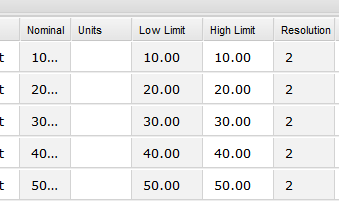
§ Example2: If the Start value is 5 and the End value is
12 with a Step Size of 3, the Nominal values will be 5, 8, and 11.
·
Unit – The
measurement unit of the values for each test.
·
% Reading – Indicates
the percentage to use to calculate the specifications for each test as a
percentage of each Nominal value.
·
%FS – Indicates
to use a percentage of full scale to calculate the test specification for each test. Note that the End value is used
as the full scale value.
·
Floor – Indicates
the floor value for specifications. This value is added to the calculated
specification for each test.
·
Resolution (required) – Indicates the number of decimal places to use to
format all values.
·
PPM – If
checked, the value entered is parts per million (PPM). If unchecked, the value
entered is in percentage.
·
Use the greater of % Reading and %FS errors –
If checked, the greater of % Reading and %FS is
applied to the calculated specification value for each test.
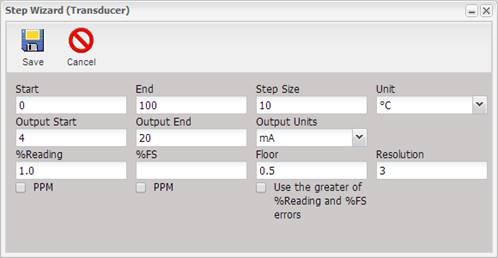
Step Wizard (Transducer) – Displays the Step Wizard (Transducer) screen which automatically generates rows for a transducer template based the criteria entered. All rows generated by the wizard are assigned the Inside Limits Row Type. Each field on the screen is described below. After populating the necessary fields, select the Save button to generate the tests. Select the Cancel button to abort using the Step Wizard (Transducer).
·
Start (required) –
The nominal input value for the first test.
·
End (required) – The maximum nominal value of the last
test. If the End value is not an exact multiple of the Step Size (offset by the
Start value), the Nominal value of the last test will be the last multiple less
the End value.
·
Step Size (required) – The step size between each Nominal input value.
§ Example 1: If the Start value is 10 and the End value
is 50 with a Step Size of 10, the Nominal values will be 10, 20, 30, 40, and
50.
§ Example2: If the Start value is 5 and the End value is
12 with a Step Size of 3, the Nominal values will be 5, 8, and 11.
·
Unit – The
measurement unit of the nominal values for each test.
·
Output Start (required) – The output value for the transducer that corresponds
to the Start value.
·
Output End (required) – The output value for the transducer that corresponds
to the End value.
·
Output Units – The
measurement unit for the Output values.
Note: The Output values are the linear relationship between the
input and output. For example, the Start could be 0 PSI, the End could be 100
PSI, the Output Start could be 0 Volts and the Output End could be 5 Volts.
·
% Reading – Indicates
the percentage to use to calculate the specifications for each test as a
percentage of each Nominal value.
·
%FS – Indicates
to use a percentage of full scale to calculate the test specification for each test. Note that the End value is used
as the full scale value.
·
Floor – Indicates
the floor value for specifications. This value is added to the calculated
specification for each test.
·
Resolution (required) – Indicates the number of decimal places to use to
format all values.
·
PPM – If
checked, the value entered is parts per million (PPM). If unchecked, the value
entered is in percentage.
·
Use the greater of % Reading and %FS errors –
If checked, the greater of % Reading and %FS is
applied to the calculated specification value for each test.
The Step Wizard and Step Wizard Transducer are used to generate sequences of measurement points for manual calibration.
·
Generating Ascending Points – To generate a set of ascending points, the Start
value should be smaller than the End value.
·
Generating Descending Points – To generate a set of descending points, the End
value should be smaller than the Start value.
·
Step Size – The
step size is always a positive value, indicating the span between the
measurement points, regardless of the direction of the sequence defined.
·
Generating Points with one or more Changes of Direction
– To generate a set of points with
one or more changes of direction, e.g. a ramp-up, ramp-down sequence, use the
step wizard to generate the ramp-up sequence, then use it again to generate the
ramp-down sequence, repeating as necessary.
·
Rollback Changes –
The Cancel button allows for rolling back changes. In order to be able to roll
back only the latest points generated by the wizard, make sure to save the
template before generating the next sequence.
·
Sequences containing Negative Values – The step wizards support sequences that contain
negative values, e.g. Start -100, End 0 will generate an ascending sequence
from -100 to 0. Start 100, End -100 will generate a descending sequence from
100 to -100.
The Low Limit and High Limit values are calculated based on the error determined for each point. The options for defining allowable error values include reading and/or full-scale (FS) error, expressed as a percentage or parts per million (PPM), if the respective PPM check box is checked.
·
A Floor value can
be specified, which is added to the calculated error.
·
Reading and Full-Scale
error values are added at each point, unless the Use greater of %Reading and
%FS errors option is checked, in which case either reading or FS error is
applied, depending on which is greater.
The error at a nominal value of 0 is undefined. The following conventions apply for 0 nominal values:
·
For a Full-Scale
value of 0, the span error is used instead of Full-Scale error. For example,
for a sequence from -100 to 0, a 1% FS error is determined to be 1, based on 1%
of the span between -100 and 0.
·
The Reading Error
for a measurement point at 0 defaults to 0.
·
The author of the
template is expected to adjust Low Limit and High Limit values for 0 nominal values,
depending on the specific requirements.