Searches can be performed in many different ways.
·
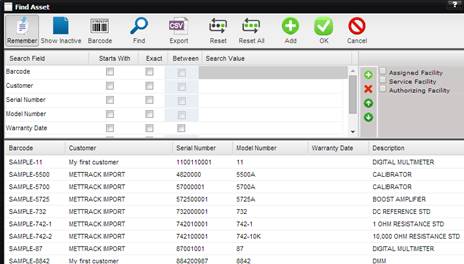
Searching can use
compound search criteria by entering values in more than one of the “Search
Value” boxes.
·
Search values are
additive, meaning that all values entered are used to filter the data being
returned in the search.
·
Data can be
further filtered by check boxes made available to the user. Checking one or
more of these boxes adds additional filtering to the data selected. Like the
fields available in the find dialog, these check boxes can change or disappear depending
upon the context in which the Find dialog is called.
o
Find Asset –
filtering by: Assigned Facility, Service Facility, Authorizing Facility – finds
Assets associated only with the Facility that the user is associated with. For
example, if on the Asset screen the Assigned Facility is “Cal Shop” and “Cal
Shop” is not listed in the User screen (facility grid at the bottom) for the
user that is logged in, this user will not see the Asset on the Find Asset
screen if the “Assigned Facility” checkbox is selected.
o
Find Asset – All
no filtering (this is the same as when none of the check boxes are selected).
Search values can be found using one of three methods:
1.
Contains –
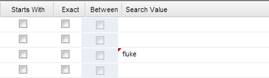
The default setting for MET/TEAM which returns any data that contains the
search value(s) entered. If there is no data that contains the search value,
nothing is returned. To use “Contains”, enter the search value, and leave
“Starts With” and “Exact” unchecked.
2.
Starts With
– Searches for data that starts with the search value(s) entered. If there is
no data that contains the start with value, nothing is returned. To use “Starts
With”; check the “Starts With” box on the data element of choice.
3.
Exact – Searches
for data that is an exact match to the search value(s) entered. . If there is
no data that exactly matches the value, nothing is returned. To use “Exact”
check the “Exact” box on the data element of choice.
4.
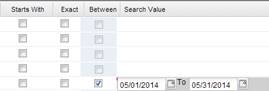
Between – Searches for dates that fall between the date range
selected using the date pickers in the search value field. Leaving any date
picker blank causes that date to be set to today’s date. This method is only
available for date fields.
Find dialogs in MET/TEAM can be modified by the user to fit specific needs.
Once the Remember button is pressed, the Search Condition fields can be tailored for each user to contain only the data elements they wish to have returned.
To add fields to the Search Conditions, click the “+” button. An available list of fields is displayed to choose from.
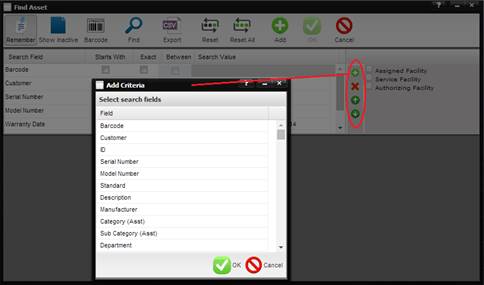
To remove fields from the Search Conditions, highlight the field and click the delete “X” button.
To modify the order of the Search Conditions, highlight a field and click the “↑” or “↓” buttons to move the selections.
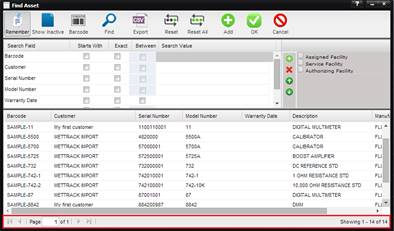
The order of the search field rows determines the column order in the results grid. Data within the results grid can be resorted by clicking the column header name - first click ascending, second click descending. If the results grid contains more data than fits on one screen, the status bar on the bottom displays how many items have been returned by your search and controls paging.
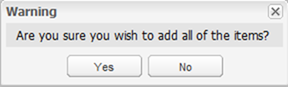
When using a multi-select Find dialog (two grids on the screen), all items in the top window can be selected and copied to the bottom window:
1. Press [CTRL] +[A] keys
2. Click Yes