Users can be added either by selecting the Setup menu Users option or from within the Users screen selecting the Add button.
The Find screen is displayed.
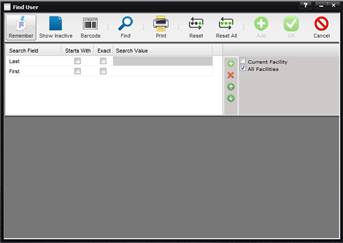
Select the Cancel button and the Add User screen is displayed. Required fields are outlined in red. When the mouse hoovers over a required field, a tooltip is displayed stating that the field is required.
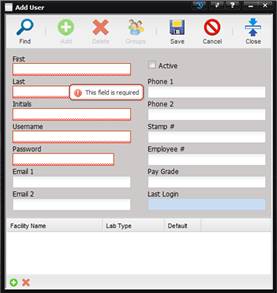
Fill in the attributes for the user and select the Save button when all desired attributes are complete.
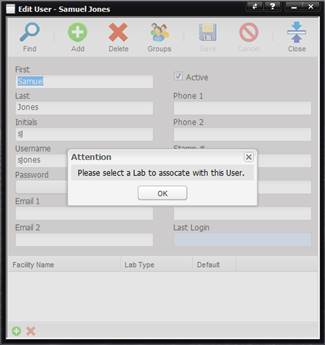
A message is displayed stating that the User must be associated with a Lab. Select OK on the prompt. The Find New Lab screen is displayed.
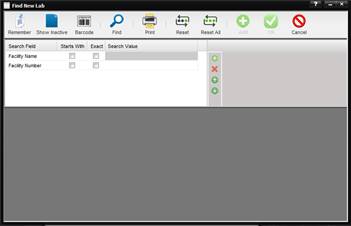
Select the Find button and the list of Facilities to select as the Lab for this User is displayed.
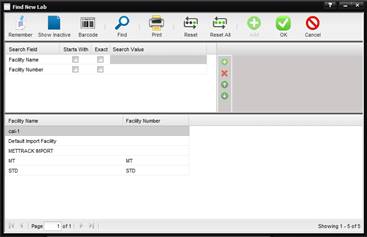
Select the Lab and the Edit User screen is displayed. The Facility Grid displays the Lab you selected for this User.
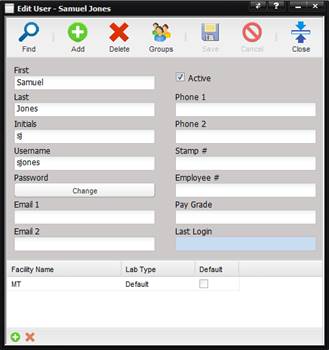
The Facility Grid contains the labs in which this user can work.
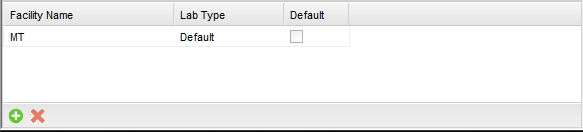
The “+” button below the grid can be used to add a lab or the “X” button can be used to delete a Lab.
Note: When creating or
editing a Facility from the Maintenance menu Facility submenu, a Facility must
be setup as a Lab to be added to this grid.
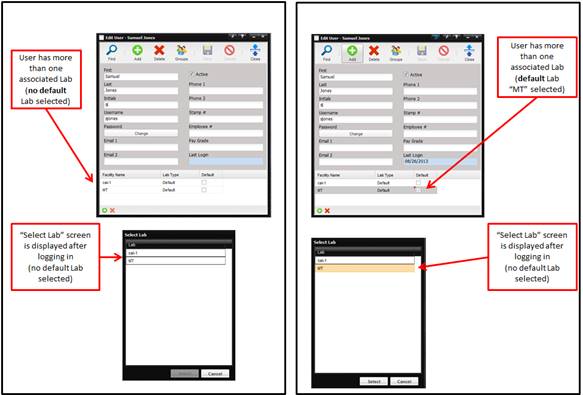
If more than one lab is added and listed in this grid, the user is prompted at log in with the Select Lab dialog to select which lab they wish to log in to.
· If a lab is marked as default, it appears highlighted in the Select Lab dialog, allowing the user to log on quickly.
· The user is not required to have a default lab; it is simply a convenience. To set a lab as a default, double click the lab and select “Yes” when the prompt appears.
Assigning Groups (User Rights)
When a User is setup, the Administrator decides what Group or Groups a User is assigned to.
A User is not required to be assigned to any User Groups. If a User is not assigned to any Group, the User has rights to those functions that have been enabled or made visible for ‘Everyone’ through the Edit Control Security screen. This screen is only available to Users in the Administrator and Configuration Groups. See your MET/TEAM Administrator for further details.
Groups are used to determine what the User is allowed to do.
·
When creating a
new User, you must save the User account settings before you can assign the User
to Groups.
·
The Groups button
can be also be used to assign a User to one or more Groups.
·
When attempting
to close the Edit User screen, a prompt is displayed asking if you want to
assign the User to a Group.
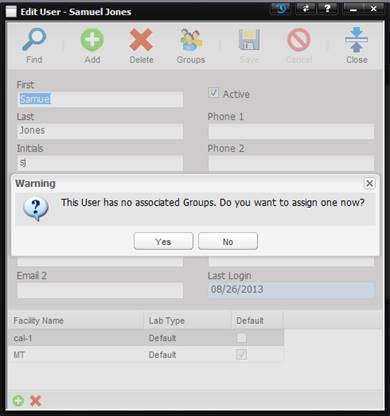
Select Yes, to open the Assign Groups screen or no to continue to close the Edit User screen without assigning the User to a Group.
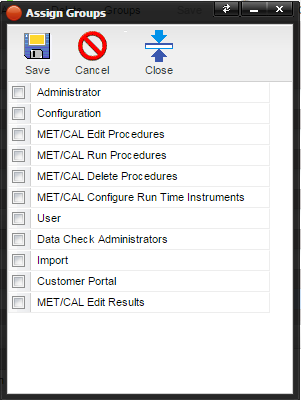
The MET/TEAM application ships with a set of default groups. Additional groups can be added by a trained Administrator. For more information, see the section
Groups.
Access to Administrator and Configuration provides a User with the ability to disable and enable buttons, menus, and the Setup menu.
Access to User provides a User with the ability to “use” the application as configured by the Administrator and/or Configurator.
Access to the “MET/CAL….” Groups, Data Check Administrator Group, or Import Group allows a User perform the functionality. If a User needs to perform any of these functions and does not have access, a message is displayed or the particular menu is disabled.
·
Administrator
– Highest level of access for MET/TEAM, no restrictions within MET/TEAM.
o
A User in this
Group has access to the Configure menu and all functionality contained within
that menu.
o
A User in this
Group can configure individual screens using the right-click functionality.
o
A User in this
Group can create Data Checks.
o
A User in this
Group can Import data into MET/TEAM.
o
A User in this
Group can assign Users to Groups.
o
A User in this
Group can reset an individual User’s password.
o
For an
Administrator to use MET/CAL, the 4 MET/CAL Groups must be checked.
- Configuration – One level of access below Administrator.
o
A User in this
Group has access to the Configure menu and all functionality contained within
that menu.
o
A User in this
Group can configure individual screens using the right-click functionality.
o
A User in this
Group can create Data Checks.
o
A User in this
Group can Import data into MET/TEAM.
o
A User in this
Group can assign Users to Groups.
- Import – Required
to Import data into MET/TEAM.
- MET/CAL Configure Runtime Instruments – Required to alter instrument and station specific setup details using the MET/CAL Runtime Configure tab. The User must also be assigned to the MET/CAL Run Procedures group to login to the MET/CAL Runtime.
- MET/CAL Delete Procedures – Required to delete a procedure from Proc.Dir using the MET/CAL Procedure Editor. The User must also be assigned to the MET/CAL Edit Procedures group to login to the MET/CAL Editor.
- MET/CAL Edit Procedures – Required to edit MET/CAL procedures using the MET/CAL Procedure Editor. Allows the User to login to the MET/CAL Editor.
- MET/CAL Run Procedures – Required to run a MET/CAL procedure in the MET/CAL Runtime. Provides read-only access to the MET/CAL Runtime Configure tab and full access to the MET/CAL Runtime Setup and Run tab.
- Edit Results – Required to edit calibration results on the MET/TEAM Work Order Results tab. Provides access to all tabs under the MET/CAL Runtime Configure tab.
- User – Basic level of access needed to use MET/TEAM.
- A User in this Group cannot perform any Administrative tasks.
- A User in this Group cannot perform any Configuration tasks.
- A User in this Group cannot perform any Data Check tasks.
- A User in this Group cannot perform any Import tasks.
- A User in this Group cannot perform any MET/CAL tasks.
- A User in this Group cannot create a new user.
- A User in this Group cannot create a new contact.
- No Group Assigned – Lowest level of access needed to use MET/TEAM.
- If a User is not assigned to any Group, the User has rights to those functions that have been enabled or made visible for ‘Everyone’ through the Edit Control Security screen. Functionality is customizable by the Administrator and may have been changed from how the MET/TEAM product is shipped.