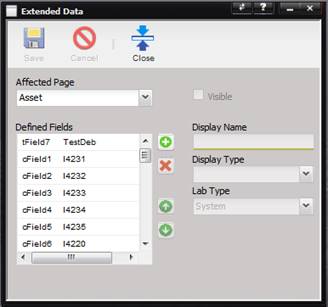
The Extended Data option allows adding data fields that are not already present to specific screens.
·
Affected Page
– The screen that will be affected by this change. For example, if Asset is
selected, the extended data field that is selected from the Defined Fields list
will be displayed on Assets Characteristics tab EX Data grid on the Asset
screen.
·
Visible – If checked, the data field is
visible on the screen designated by the Affected Page field.
·
Defined Fields – The list of fields that can be added.
·
Display Name – The label for the extended data field on the Affected
Page screen.
·
Display Type – The type of field: Numeric, Text, Combo, Date, Currency,
Memo, or Boolean.
Note: The Display Type and Defined Field type must
match. See the Display Type and Defined Type table.
·
Lab Type – The lab affected by the change. System changes all
labs.
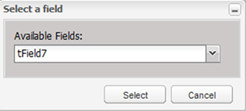
To add fields to the Defined Fields list, select the “+” button next to this list. The Select a field dialog is displayed for selecting the field to add.
To delete fields from the Defined Fields list, select the “X” Delete button next to this list.
To arrange the list of fields within the Defined Fields
list, use the “↑” and “↓”arrows.
|
Function |
Field Type |
|
|
Numeric |
Number Input |
nField |
|
Text |
Text Input |
cField |
|
Combo |
Drop Down |
cField/mField |
|
Date |
Date Input |
tField |
|
Currency |
Currency Input |
nField |
|
Memo |
Long Text Input |
mField |
|
Boolean |
Check box Input |
lField |