The Work
State tab is for batch changing the Cancelled, Return No Maint, and Rejected
checkboxes on Work Orders. The changes will be reflected on the Work Order once
the Process button is selected. This tab must be the active tab when the
Process button is selected.
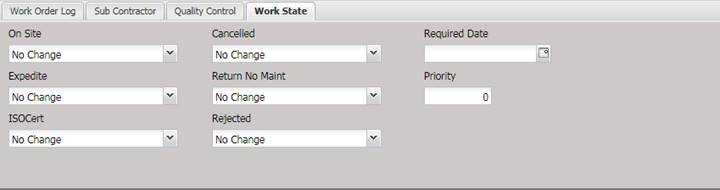
·
On Site – This
dropdown allows batch changing the On Site checkbox on
the Work Order indicating the service was
done or needs to be done on site.
o
No Change –
The Work Order On Site check box
remains in its current state. No change is made due to the Batch Change
process.
o
Yes - The
Work Order On Site check box is
checked for all Work Orders being changed through this Batch Change process.
o
No - The
Work Order On Site check box is not
checked for all Work Orders being changed through this Batch Change process.
·
Expedite – This
dropdown allows batch changing the Expedite checkbox
on the Work Order indicating the Asset needs
to be expedited through the service process.
o
No Change –
The Work Order Expedite check box
remains in its current state. No change is made due to the Batch Change
process.
o
Yes - The
Work Order Expedite check box is
checked for all Work Orders being changed through this Batch Change process.
o
No - The
Work Order Expedite check box is not
checked for all Work Orders being changed through this Batch Change process.
·
ISOCert – This
dropdown allows batch changing the ISOCert check box
on the Work Order indicating the Asset
requires an ISO or Accredited certificate.
o
No Change –
The Work Order ISOCert check box
remains in its current state. No change is made due to the Batch Change
process.
o
Yes - The
Work Order ISOCert check box is
checked for all Work Orders being changed through this Batch Change process.
o
No - The
Work Order ISOCert check box is not checked
for all Work Orders being changed through this Batch Change process.
·
Cancelled
– This dropdown allows batch changing the Cancelled
checkbox on the Work Order indicating that the Service Facility cancelled
the Work Order.
o
No Change –
The Work Order Cancelled check box
remains in its current state. No change is made due to the Batch Change
process.
o
Yes - The
Work Order Cancelled check box is
checked for all Work Orders being changed through this Batch Change process.
o
No - The
Work Order Cancelled check box is not
checked for all Work Orders being changed through this Batch Change process.
· Return No Maint – This dropdown allows batch changing of the Return No Maint checkbox on the Work Order indicating the Asset owner has requested the Service facility to close the Work Order and have the Asset returned with no maintenance being performed.
o
No Change –
The Work Order Return No Maint check
box remains in its current state. No change is made due to the Batch Change
process.
o
Yes - The
Work Order Return No Maint check box
is checked for all Work Orders being changed through this Batch Change process.
o
No - The
Work Order Return No Maint check box
is not checked for all Work Orders being changed through this Batch Change
process.
· Rejected – This dropdown allows batch changing of the Rejected checkbox on the Work Order indicating that as a result of the Work Order, the Asset has been rejected.
o
No Change –
The Work Order Rejected check box
remains in its current state. No change is made due to the Batch Change
process.
o
Yes - The
Work Order Rejected check box is
checked for all Work Orders being changed through this Batch Change process.
o
No - The
Work Order Rejected check box is not
checked for all Work Orders being changed through this Batch Change process.
·
Required
Date – This date field allows batch changing of the Required
Date on the Work Order indicating the date the customer requests the Asset
to be returned by.
· Priority - This date field allows batch changing of the Priority on the Work Order indicating the service priority of the Asset.
All changes can be discarded by pressing the Cancel button at the top of the screen before the Process button is pressed.