To modify a System Default, select the System Default to be modified in the Find System Default screen and select OK.
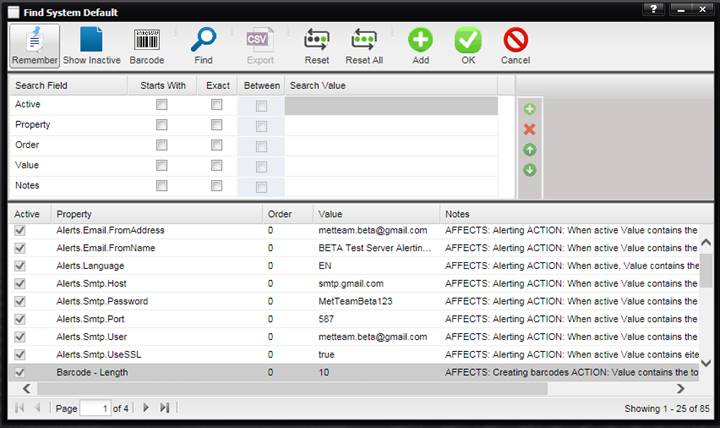
In this case, the Barcode –Length System Default is being edited. The Edit – Barcode – Length screen is displayed. (The edit screen is the same regardless of the System Default being edited.)
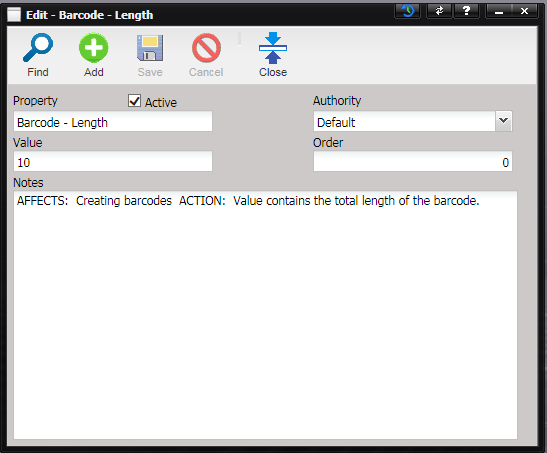
· Property – Name of the property.
Note: The Property Name should never be changed
for the System Defaults that are part of the MET/TEAM software when purchased.
· Active – Turns on or off the functionality of the System Default. If checked, the System Default is enabled.
· Authority – The authority this default applies to. If an authority for the logged in Facility does not exist, the “System” authority is used.
· Value – Value of the property that determines the outcome of the selected System Default. Refer to the Notes for the System Default to determine valid Values.
· Order – If there is more than one System Default that reacts at the same time, the Order controls the sequence.
· Notes – A description of the system default and what part of the program it has an effect on.
Note: Modifications to
system defaults may cause parts of the program to function incorrectly. Please
refer to the Systems Default Table before modifying System Defaults.
Select the Save button to save any changes. Another System Default can be found by selecting the Find button. To close this screen, select the Close button.