A scheduled Recall report can be setup based on Tool Assignment criteria. The report “Recall-Alerting-ToolAssignment.rpt” was designed to meet this need.
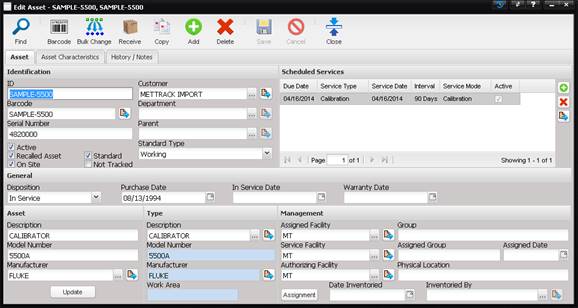
This functionality can be applied to any Asset. However, the Asset must meet specific criteria to function properly with the report “Recall-Alerting-ToolAssignment.rpt”. These criteria are set on the Asset screen.
·
The checkbox “Not
Tracked” must not be checked.
·
The checkbox
“Recalled Asset” must be checked.
·
The checkbox
“Active” must be checked.
·
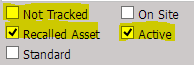
The Asset Scheduled
Services grid must show that the Asset is due between ‘today’ and ‘today+1
month’. For example: If my recall report runs on October 25, 2013. The Asset
must be due on or between October 25th and before November 25th.
·
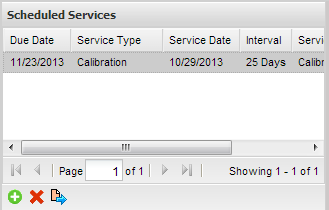
On the Tool
Assignment screen, the Asset must not have
a Returned Date.
This functionality works with the Tool Assignment. The Tool Assignment must have the following criteria.
·
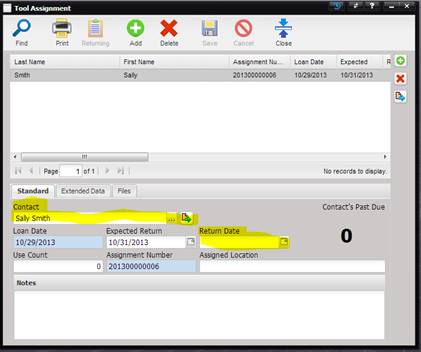
The Contact must
be assigned to the Tool Assignment.
·
The Tool
Assignment Return Date must be blank. The Tool Assignment has not been
returned.
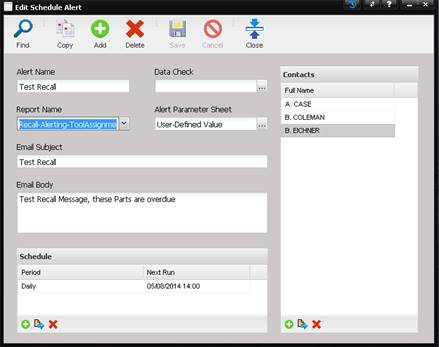
The scheduled Alert must be setup.
·
The Tool
Assignment Contact must be in the Scheduled Alert Contacts list.
·
If a Contact is
in the list and the Contact does not have an overdue Assets assigned to them
with Tool Assignments, the Contact will not receive an email. Only Contacts
with overdue Assets assigned to them through Tool Assignment will receive an
email.
·
The Report Name
must be “Recall-Alerting-ToolAssignment.rpt”.
· The Alert Name must be Recall Alert.
Note: This Alert Name is
referenced in a later section.
·
The report
parameter is setup by selecting the ellipsis next to the Alert Parameter Sheet
field.
·
This report was
designed to have a single parameter “nContactUID”. MET/TEAM is programmed to
automatically replace that specific token with the respective contact who will
be receiving the report which allows for customization per Contact.
·
Next close the
parameter screen and press ‘Save’ on the Edit Scheduled Alert screen.