The following example provides step-by-step instructions for creating a Manual Template.
1.
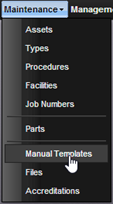
Go to Maintenance
-> Manual Templates.
2.
Select the Add
button to add a new Manual Template.
3.
Give the Manual
Template a new name. For example: Pressure
Gauge.
4.
Add any necessary
notes.
5.
Select the
Template Design tab.
6.
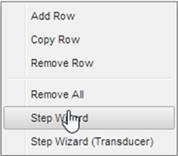
Right click
anywhere inside the grid and select the Step Wizard option.
7.
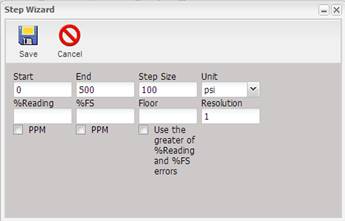
Fill out the form
with the relevant information.
a.
Enter 0 for the
Start value.
b.
Enter 500 for the
End value.
c.
Enter 100 for the
Step Size (each row will increment by 100 units).
d.
Enter PSI for the
Unit of measure.
e.
Enter 1% for the
% Reading.
f.
Enter 1 digit of
resolution.
9.
Select the Save
button.
10.
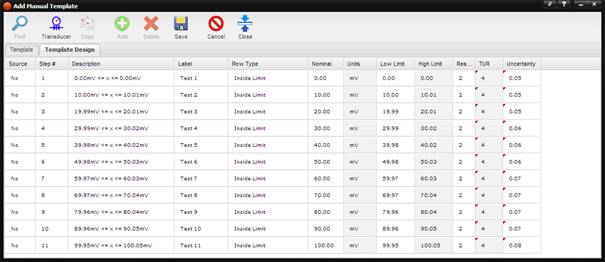
The Manual
Template grid is automatically populated with the relevant rows of data.
11.
Fill in the
description, label and/or uncertainty for each of the rows by placing the
cursor in the appropriate cell.
12.
Select the Save
button at the top of the screen.
13.
The screen will
refresh, and your template is complete!