The Data Cleanup Tool is used for cleaning up data that may be duplicated or marked for deletion. The Data Cleanup Tool consists of three tabs:
·
Tab for
processing duplicate records
·
Tab for removing
records flagged for deletion
·
Tab for accessing
the logs of past cleanups.
The Duplicates tab is for processing duplicate records. Press the Refresh button to view a list of all records considered to be duplicates in the database.
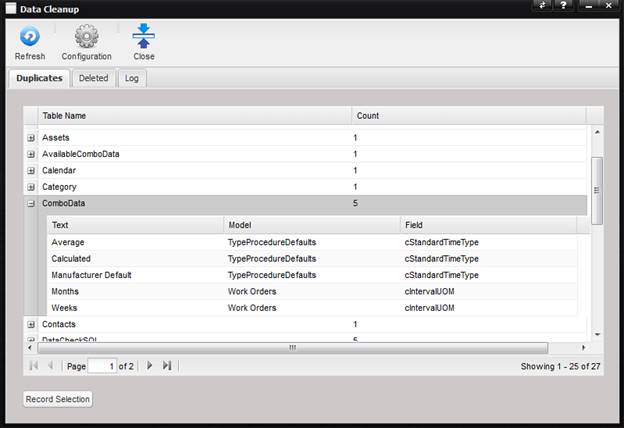
The grid contains the Table Name and a Count of the conflicts. By pressing the “+” button next to the Table Name record, the record expands and the individual conflicts are displayed.
The Record Selection button on the Duplicates tab displays the Record Selection screen. This screen lists the duplicates found in all tables in the database. These duplicates are based on the configuration defined.
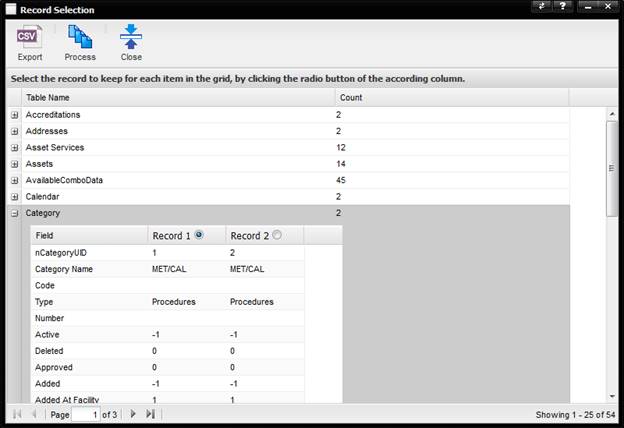
To process one or more duplicates, expand a Table Name and select the record to keep. The records are presented in a pivot view, i.e. each column represents one record in the database. In order to determine which record is the valid one, compare the data between the records (columns) and click the radio button of the record to keep. When a duplicate is marked for deletion, other records in the database that reference that record are updated to reference the record to keep instead.
Example:
When a Facility designated as a manufacturer is processed as a duplicate, Types and Assets that reference that Facility will be updated to instead reference the Facility that was selected to be kept. Therefore, removing a duplicate does not interfere with the referential integrity of the data as the Type and Asset will now reference the selected one that is not removed.
However, the FacilityEX record of the Facility removed is also removed, because moving it to the Facility that is kept would result in more than one EX record for the same Facility, which is not supported.
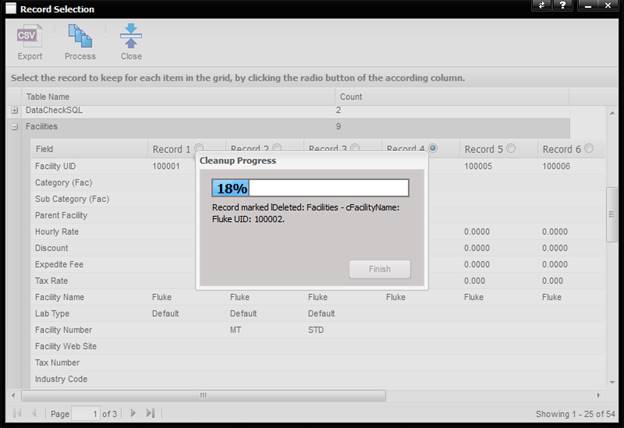
Once one or more records are selected, the Process button is enabled. Selecting the Process button, will process all table entries for which a selection has been made, the others are ignored and can be processed later. When the Process button is selected, a progress indicator is shown. Once the process is complete, the Record Selection screen closes and the grid is refreshed, to show the remaining items.
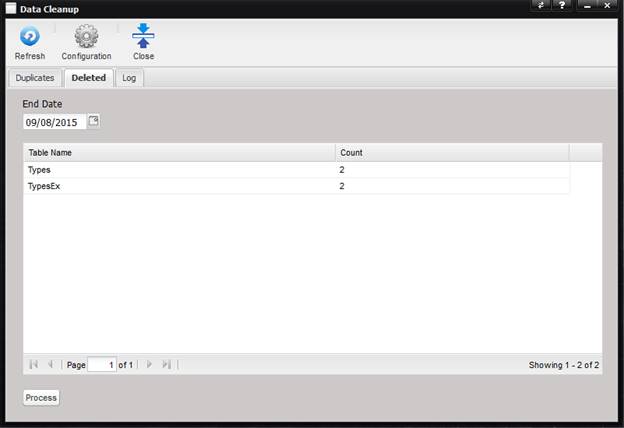
The Deleted tab is for removing records flagged for deletion. Press the Refresh button to see the records that have not been updated after the End Date entered.
·
End Date – Records
will be displayed that have been marked for deletion and have been updated prior
to and including the data entered. Defaults to today’s date.
The grid contains Table Name and a count of the number of records marked for deletion in each table.
To filter the removal to records older than a specific date, enter that specific date in the End Date field. The data is a filter based on the tUpdateTime of the records marked for deletion.
To process records marked for deletion, press the Process button at the bottom left of the screen. The progress is shown similar to the processing of duplicates. When processing is complete, the screen closes. Some records may not be removed, due to dependencies on other records that are newer, and therefore past the End Date entered.
Example:
If an Asset marked for deletion hasn’t been updated since the End Date entered, but newer Work Orders exist for this Asset, the Asset cannot be removed. At a later time, once the Work Orders fall within the End Date, they will appear in the grid as well and now the Asset (and Work Orders) can be deleted.
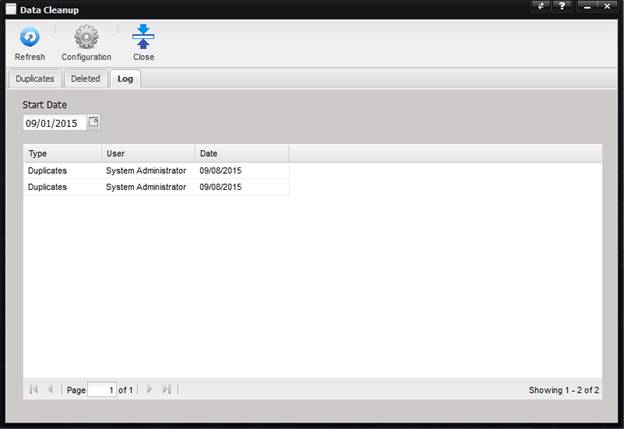
The Log Tab displays entries of previous cleanups performed before the date entered as the Start Date.
The Log tab displays entries from previous cleanups performed after the Start Date entered.
·
Start Date –
The date from which to list the log entries. Defaults to 1 week from today (to
show the most recent week of cleanups).
The grid contains the Type (Duplicate or Deleted), User (who performed the action), and the Date the action was performed.
More data can be retrieved, by setting the Start Date back further and pressing Refresh.
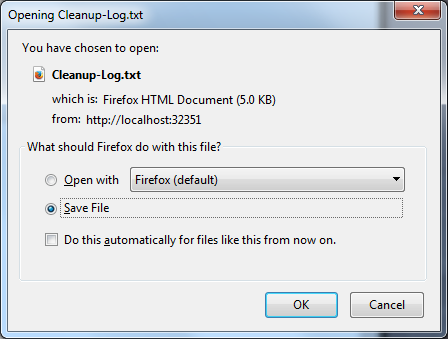
To view the log of a past cleanup, double-click the desired record; the log will be downloaded as a file in the web browser and stored in the download location set up in the web browser’s settings. From there it can be viewed with the text viewer set up in Windows – usually by double-clicking the file in the download history.
The log shows a detailed list of the items updated. The fields listed for each type of record are those defined in the Configuration screen for the according table, e.g. for a Category record, it shows Category Name (Category.cDescription) and Type (Category.cType) by default. For tables updated that are not configurable, a hard-coded list of fields is retrieved. E.g. for a record from the Asset Ex table, the fields configured for Assets are displayed, plus the first character field in the ex table, i.e. cField1.