The Configuration button opens the Data Cleanup Configuration screen which allows for selecting columns from every configurable table. Use this screen to define how a unique record is identified for a specific table.
Configurations set up here are set up initially and are rarely changed. These configurations reflect the business logic of the enterprise. The order in which the columns are added has no impact on the identification of a duplicate.
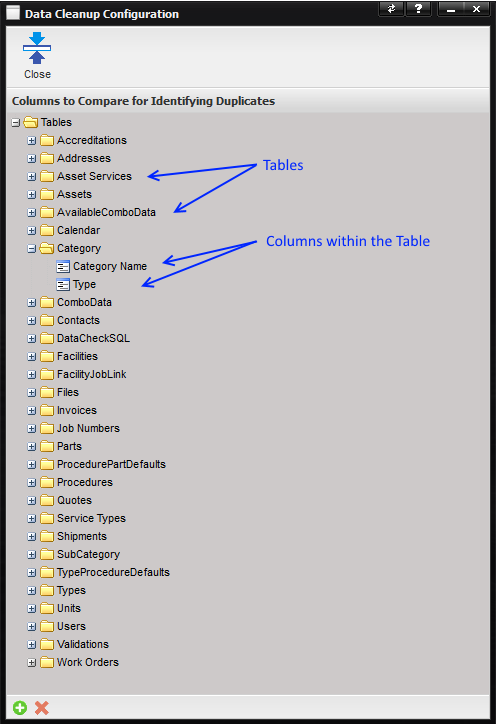
Example:
If the columns Category Name and Type are selected for the Category table, any records in the Category table that have identical values for cDescription and cType are considered duplicates.
The following table shows the default configuration for a new MET/TEAM installation. Each table is listed with the configured columns and order of the columns.
|
Table |
Column |
Order |
|
Accreditations |
Name |
1 |
|
Addresses |
Facility Name |
1 |
|
Addresses |
Type |
2 |
|
Addresses |
Address 1 |
3 |
|
Addresses |
City |
4 |
|
Addresses |
Country |
5 |
|
Asset Services |
Barcode |
1 |
|
Asset Services |
Service Type |
2 |
|
Asset Services |
Service Mode |
3 |
|
Assets |
Barcode |
1 |
|
AvailableComboData |
Text |
1 |
|
Calendar |
Task Subject |
1 |
|
Calendar |
Task Due Date |
2 |
|
Category |
Category Name |
1 |
|
Category |
Type |
2 |
|
ComboData |
Text |
1 |
|
ComboData |
Model |
2 |
|
ComboData |
Field |
3 |
|
Contacts |
Contact Id |
1 |
|
DataCheckSQL |
Affected Page |
1 |
|
DataCheckSQL |
Data Check Name |
2 |
|
DataCheckSQL |
Function Name |
3 |
|
Facilities |
Facility Name |
1 |
|
FacilityJobLink |
Facility Name |
1 |
|
FacilityJobLink |
Job Number |
2 |
|
Files |
File Name |
1 |
|
Files |
Link To |
2 |
|
Invoices |
Invoice Number |
1 |
|
JobNumbers |
Job Number |
1 |
|
Parts |
Part Number |
1 |
|
ProcedurePartDefaults |
Procedure Name |
1 |
|
ProcedurePartDefaults |
Part Number |
2 |
|
Procedures |
Procedure Name |
1 |
|
Quotes |
Quote Number |
1 |
|
ServiceTypes |
Service Type |
1 |
|
ServiceTypes |
Service Mode |
2 |
|
Shipments |
Shipment Name |
1 |
|
SubCategory |
Sub Category Name |
1 |
|
SubCategory |
Category Name |
2 |
|
SubCategory |
Type |
3 |
|
TypeProcedureDefaults |
Description |
1 |
|
TypeProcedureDefaults |
Model Number |
2 |
|
TypeProcedureDefaults |
Manufacturer |
3 |
|
TypeProcedureDefaults |
Procedure Name |
4 |
|
Types |
Description |
1 |
|
Types |
Model Number |
2 |
|
Types |
Manufacturer |
3 |
|
Units |
Unit Symbol |
1 |
|
Units |
Code |
2 |
|
Units |
Conversion Factor Exponent |
3 |
|
Users |
User Name |
1 |
|
Validations |
Affected Page |
1 |
|
Validations |
Data Check Name |
2 |
|
Work Orders |
Barcode |
1 |
The default configuration supplied with a new installation of MET/TEAM may be sufficient for most use cases.
To add another column to table, highlight the table in the tree and select the “+” button at the bottom of the screen. The Add Configuration Field dialog is displayed. Select a field from the drop down list and push Save.
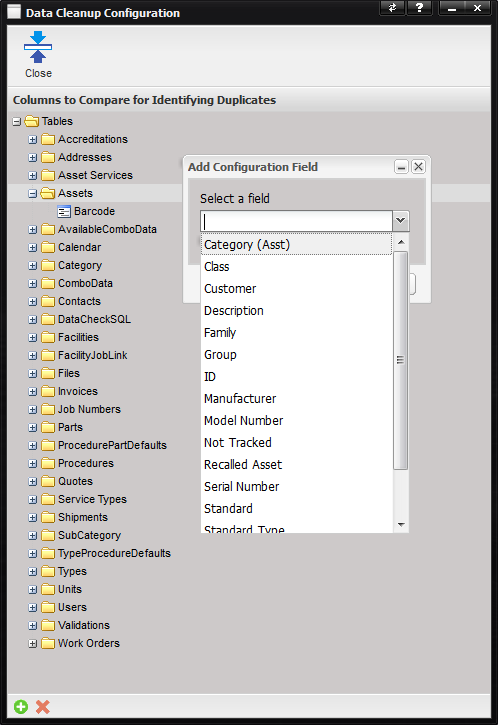
To remove a column from a table, highlight the table in the tree and select the “x” button at the bottom of the screen.
Note: The same
configuration entered here applies to the MET/TEAM Import Tool. Therefore, the
same logic applies when determining if a record imported already exists in the
database as when cleaning up duplicates. The Import covers tables that cannot
be cleaned up by themselves, e.g. Points and related tables, so there is a
separate configuration screen for the Import Tool, which includes the data
presented here, as well as tables specific to Import only. When a change is
made to the configuration, the data shown on the grid of the Duplicates tab
will be outdated and must be refreshed.