The Data Checks menu is used to create snippets of code which customize the behavior of MET/TEAM. Data Checks are JavaScript blocks of code which are executed every time data is saved to the database. This functionality is for experienced users with JavaScript knowledge.
The Manage Data Check Scripts screen displays the data checks that currently exist in the MET/TEAM. Highlight a row and double click to open the Data Check and view the details of the Data Check.
Data Checks are processed in a “first come first serve” basis. There is no post-ordering other than natural record order meaning that whichever Data Check was created first is executed first. If you are using multiple Data Checks on one screen, consider combining the individual Data Checks into a single Data Check allowing for control of order.
The following is a brief description of each Data Check example.
·
StandardType – This Data Check applies to the
Asset screen. When active, the Data Check forces the user to select the
Standard Type when an Asset is marked as a Standard.
·
Facility – Check Duplicate Names – This Data
Check applies to the Facility screen. When active and a Facility is being
added, the Data Check checks to ensure that the Facility name is not a
duplicate of an existing Facility name.
·
Partial Cal – Warn User if Not Finished – This Data
Check applies to the Work Orders screen. When active, the Data Check prompts
the user that the procedure has not executed fully.
·
Tool Assignment - Check for Overdue Asset – This Data
Check applies to the Tool Assignments screen. When active, the Data Check
prompts the user when the expected Return Date of a Tool Assignment is after
the calibration due date.
·
Facility - Require K4612 – This Data
Check applies to the Facility screen. When active and a Facility is being
edited, the Data Check ensures that a specific Extended Data field has been
populated before saving the record.
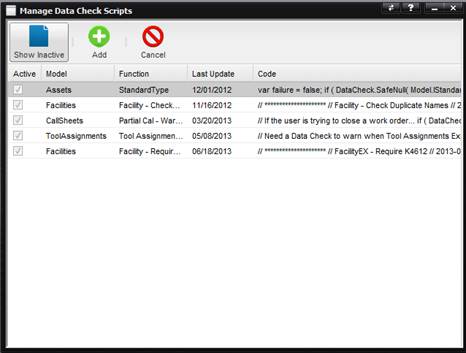
If the active checkbox is checked, the Data Check is currently active and being used within MET/TEAM.
If the active checkbox is unchecked, the Data Check is not being used in MET/TEAM. To view the inactive data checks, select the Show Inactive button in the toolbar.
The form which a given Data Check affects can be noted by the “Model” column. Additionally you can see more information about each respective data check such as the last time it was updated and a brief snippet of the code that is being used.
Show Inactive – Used to toggle between showing all Data Checks (regardless of the Active state) and only showing the currently applied (being used) Data Checks.
Add – Used to add a new Data Check. It opens the Add Data Check dialog.
Cancel – Used to exit the screen.
To modify a Data Check, double click any item in the grid to automatically navigate to the Edit page dialog page.
To add a Data Check, select the Add button at the top of the Manage Data Check Scripts screen. The Add Data Check screen is displayed.