The Asset
Data is all the information pertaining to the Asset itself.
·
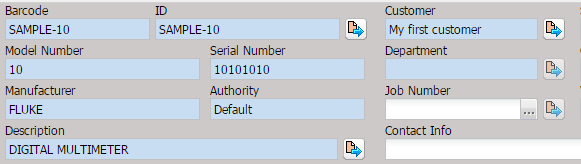
Barcode –
The unique identifier for this Asset.
No two Assets can have the same barcode. If the user attempts to enter a
barcode already in the system, a warning message appears and requires the user
to enter a new barcode. The barcode length is determined by the System Default
“Barcode – Length”.
· ID – An identifier that can be used to find the Asset. This identifier is not required to be unique or the same as the barcode. We recommend that this number and the barcode be the same but it is not necessary.
o The Asset can be viewed by selecting the Quick Link button.
·
Customer – Indicates the
owner of the Asset when the Work Order was processed.
o The customer can be viewed by selecting the Quick Link button.
· Model Number – The manufacturer’s model designation of the Asset’s characteristics and capabilities.
· Serial Number – The manufacturer’s serial number for this Asset.
· Department – Indicates the department of the Asset when Work Order was processed.
o The department can be viewed by selecting the Quick Link button.
· Manufacturer – The Company that created the Asset.
· Authority – Describes the source (ownership) of this type allowing for more than one data authority to exist.
· Description – The description of the Asset.
·
Service
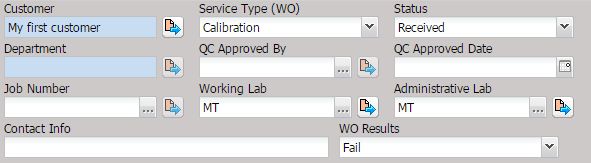
Type (WO) – Shows the service performed which affects which validations run
when saving and closing a Work Order. This field can be changed on multiple Work
Orders when the Batch button is used. See the section Batch (Work Orders) for
more information.
Note: Service Type cannot be customized. The values in this dropdown
are setup using the Setup menu Services submenu screen. The order of the
Service Types in the dropdown is based on which Service Type was edited last
using the Setup menu Services submenu.
·
Status – Displays
the current status of the Work Order. This field can be changed on multiple Work
Orders when the Batch button is used. See the section Batch (Work Orders) for
more information.
·
QC
Approved By – The QA person who reviewed this service event.
o The QC Approver can be selected or changed by selecting the “…” button. If the logged in user does not have “QC Approval” authority, a prompt for a username and password is displayed.
o The QC Approver can be viewed by selecting the Quick Link button.
This field can be changed on multiple Work Orders when
the Batch button is used. See the section Batch (Work Orders) for more
information.
·
QC
Approved Date - The date the QA person reviewed this service event. This field
can be changed on multiple Work Orders when the Batch button is used. See the
section Batch (Work Orders) for more information.
· Job Number – Brought forward from the receiving process, this is the job number that all expenses are charged to.
o The job number can be changed by selecting the “…” button.
o The job number can be viewed by selecting the Quick Link button.
· Working Lab – The Lab that performed the work. This field is filled in at the time of Receiving when the Work Order is created. This field is the same as the Lab that the user who is performing the Receiving is logged into.
o The working lab can be changed by selecting the “…” button.
o The working lab can be viewed by selecting the Quick Link button.
· Administrative Lab – The lab administratively responsible for the Work Order.
o The administrative lab can be changed by selecting the “…” button.
o The administrative lab can be viewed by selecting the Quick Link button.
· Contact Info - Additional information for the Work Order that may not be on the facility record or may be a one-time piece of information.
· WO Results – The overall status for the Work Order.
o Determination of the overall work order result (pass/fail status)
§ If the Procedure Type (Proc) is not of type "Calibration" or "Cal/Repair", the pass/fail status on the work order is set to "Indeterminate".
§ If some or all of the work order results are "As Left" or "Found\Left" for the data condition, only these types of results are considered for the pass/fail determination.
§ If none of the results are "As Left" or "Found\Left", all work order results are evaluated to determine pass/fail.
§ If one or more work order results are "Fail", the work order is set to "Fail"
· Else
§ If one or more work order results are "Fail Indeterminate", the work order is set to "Fail Indeterminate"
· Else
§ If one or more work order results are "Indeterminate", the work order is set to "Indeterminate"
· Else
§ If one or more work order results are "Pass Indeterminate", the work order is set to "Pass Indeterminate"
· Else
§ If none of the previous conditions are met, the work order is set to "Pass".
o The Results are not saved as Files.