Formulas are used in Crystal Reports to provide selection criteria for the data and may be used as a named formula or as a record selection criterion. The Formula Editor is a dialog box that contains all the tools we need to create and validate formulas. We can
·
assign a name to
a formula
·
enter a formula
·
check it to make
sure you have entered it correctly
·
accept it for use
in the report
As one would expect, when the report is printed, Crystal Reports prints the results of the formula, not the formula itself.
To open the formula editor, right-click on Formula Field in Field Explorer on the right hand side of the designer window and select New…, type a name for the formula (the example shows Overdue) and the formula editor opens.
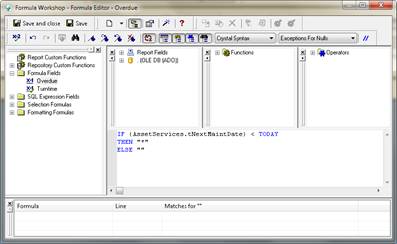
The IF… THEN… ELSE… control structures are often found in formulas and allow for easy conditional evaluations. They can be typed in manually or entered from the Operators tree in the top-right window.
Formulas may also be used when creating selection criteria for obtaining the desired data. To do this, select Selection Formulas, Record on the Report menu.
For Example:
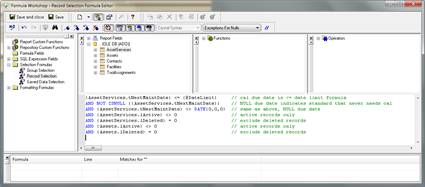
Comments
can be entered along with formulas. Enter a double forward slash before the
commentary.
We can enter fields into formulas in two ways, by double-clicking an item in the list, or typing it in manually.
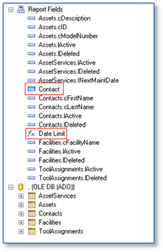
Under the Report Fields node, database fields, SQL Expression Fields and Formula Fields currently used in the report are listed in alphabetical order. SQL Expression Fields are symbolized by an “SQL” icon and Formula Fields by an “fx” icon.
Under the tree node named after the current report database connection, all tables currently on the report are listed. To add a field from one of the tables, expand the according table node and locate it.
When manually entering fields, start by typing an open curly brace which brings up a list of available tables as well as SQL Expression fields, parameters and formula fields. The closing curly brace will be inserted automatically as well.
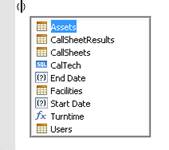
Pressing the Enter key on one of the table items will automatically add a period to the end of the table name and produce a new pop-up, listing the fields in that table.
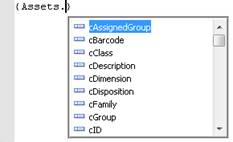
This guided process makes it easy to enter the desired field query correctly.
The syntax for entering different types of fields is as follows:
·
{<table>.<field>}
·
{?<parameter>}
·
{%<SQL
Expression field}
·
{@<formula
field>}
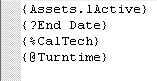
Likewise, operators and functions can be entered by double-clicking an item in the according list box, or by typing it in manually. Crystal Reports inserts the selected item into our formula, complete with any parentheses, brackets, or commas required.
Crystal Reports includes many useful functions for including dates and date ranges in formulas.
The Formula Editor also contains a formula checker which validates the syntax of the formula entered. To check the formula, click the X-2 button.
Text and numbers in formulas are entered manually.
·
Text must be
surrounded by ‘single’ or “double” quotation marks.
·
Numbers must be
entered without commas (1000000 not 1,000,000).
Examples:
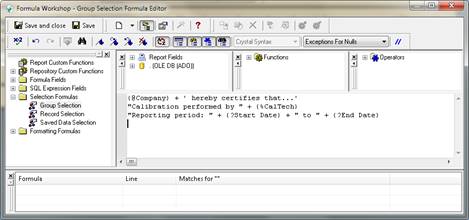
Functions and operators can be inserted into formulas by double-clicking an item in the according list or by typing them in manually. Functions can be nested within other functions, i.e. the return value of the inner functions serves as the input to the outer function.
Example:

The ELSE clause of an IF… ELSE… statement can contain yet another IF… ELSE… statement, allowing for elaborate decision trees. For example:
IF {CallSheets.tOpenDate} in Aged0T30Days
THEN “<30 Days” ELSE
IF {CallSheets.tOpenDate in Aged31To60Days
THEN “31 to 60 Days” ELSE
IF {CallSheets.tOpenDate in Aged61To90Days
THEN “61 to 90 Days”
You can
assign a variable to a formula, by first defining the variable and then using
it in a formula. For example, you may wish to assign a variable by the name of
MonthEnd and assign it to the Calibration Due Date field. Note that the
assignment <variable> := <value> must be terminated by a
semi-colon.
DateVar MonthEnd:={AssetServices.tNextMaintDate};
IF MonthEnd < {@Upper Date Limit}
THEN "This Month"
ELSE ""
Variables
may be used to keep a running total of summaries. For example:
WhilePrintingRecords;
NumberVar Cost := Cost + {Assets.nItemCost}
This will
keep a running total of the cost information in the Asset item cost field. WhilePrintingRecords forces the report
to evaluate the formula while printing the records.