Custom reports can be added to Customer Portal by placing them in the directory identified in the Value field of the System Defaults “Reports – Customer Portal reports directory”. Custom reports in Customer Portal are listed by their report name.
To see the directory where the custom reports are stored, select the System Defaults option from the Configure menu. Locate the System Default with the property of “Reports – Customer Portal reports directory”.
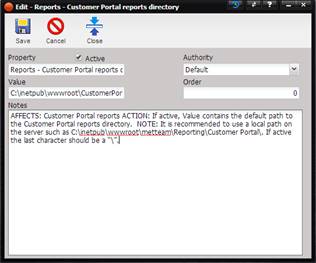
The entry in the Value field must contain a valid location and the System Default must be active. Select the Active check box to make this System Default active. Copy the report to the directory shown in the Value field. Use the Reports menu in Customer Portal to see the list of available custom reports.
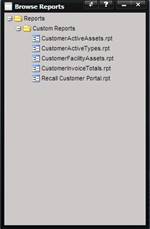
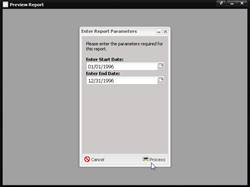
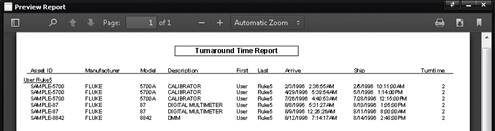
To run the report, double-click the report in the list. If additional information is required to run the report, a parameter screen will be displayed. Enter the parameters and select the Process.