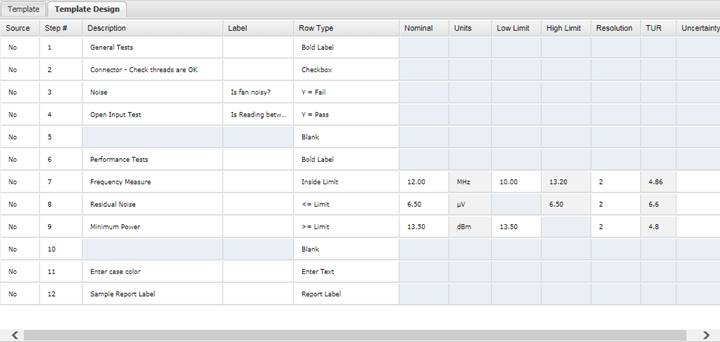
The Template Design tab contains an editable grid allowing you to design the template.
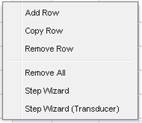
To modify the Manual Template, right-click anywhere on the grid to display the popup menu.
·
Source – Select
Yes or No from the drop-down list to indicate whether or not the data to be
entered for this test is for a source instrument (Yes) or a unit under test
(No). When this checkbox is checked, the error value calculation is reversed
for that row, subtracting the UUT value from the Nominal value.
·
Step # –Enter
a step number which will be referenced by the calibration technician when
entering data for this test.
·
Description
– Enter a description for this test. If the Row Type is set to Report Label or
Bold Label, the text in this column is printed on the report.
·
Label –Additional
descriptive information specific to this test row, optional.
·
Row Type – Indicates
the type of data to be entered for this test and allows for pass/fail limits to
be specified.
o
Blank – Select
this to make a blank row on the report.
o
Inside Limit –
Creates a test that requires both high and low limits to determine pass or
fail. The limits are based on the value in the Nominal column. Any calibration data entered for this test must be between
the High Limit and Low Limit values specified to pass.
o
<= Limit –
Creates a test that requires only a high limit to determine pass or fail. The
limit is based on the value in the Nominal
column. Any calibration data entered for this test must be below the High Limit value specified to pass.
o
>= Limit –
Creates a test that requires only a low limit to determine pass or fail. The
limit is based on the value in the Nominal
column. Any calibration data entered for this test must be below the Low Limit value specified to pass.
o
Y = Pass – Creates
a test that displays a dropdown list when entering data. If the technician
selects “Yes”, the test was successful.
o
Y = Fail – Creates
a test that displays a dropdown list when entering data. If the technician
selects “Yes”, the test failed.
o
Checkbox – Creates
a test that displays a checkbox when entering data. If the checkbox is checked,
it indicates the step was completed or performed and does not produce a
Pass/Fail result. Data is not written to the database.
o
Report Label –
Uses the text entered in the Description field as a label on the report. No
data is entered for this Row Type.
o
Bold Label –
Uses the text entered in the Description field as a bold label on the report.
This Row Type is good to use for section headers on the report. No data is entered
for the Row Type.
o
Enter Text –
Creates a text that allows the user to enter non-numeric data. This Row Type
does not get evaluated for pass/fail. It can be used to simply record
information.
Note: When viewed using the View Results screen, the data is
presented in the Test Status column which allows this data to be presented on a
report.
o
Inside Limit (!) –
Creates a test that requires both high and low limits to determine pass or
fail. This Row Type is only applicable to Transducer templates. The limits are
based on the value in the Ref Nominal
column. Any calibration data entered for this test must be between the High Limit and Low Limit values specified to pass.
o
<= Limit (!) –
Creates a test that requires only a high limit to determine pass or fail. This
Row Type is only applicable to Transducer templates. The limit is based on the
value in the Ref Nominal column. Any calibration data entered for this test
must be below the High Limit value
specified to pass.
o
>= Limit (!) –
Creates a test that requires only a low limit to determine pass or fail. This
Row Type is only applicable to Transducer templates. The limit is based on the
value in the Ref Nominal column. Any
calibration data entered for this test must be below the Low Limit value specified to pass.
·
Ref Nominal
– The nominal value of the reference for this test. This column is only
displayed on Transducer templates. For Row Types Inside Limit (!), <= Limit
(!) and >= Limit (!), the Low Limit and High Limit values are with respect
to the values in this column.
·
Ref Units –
The measurement unit of the Ref Nominal value. This column is only displayed on
Transducer templates. For Row Types Inside Limit (!), <= Limit (!) and >=
Limit (!), the Low Limit and/or High Limit values use these units.
·
Nominal – The
nominal value for this test. For Row Types Inside Limit, <= Limit and >=
Limit, the Low Limit and High Limit values are with respect to the values in
this column.
·
Units – The measurement
unit of the Nominal value for this test. For Row Types Inside Limit, <=
Limit and >= Limit, the Low Limit and/or High Limit values use these units.
·
Low Limit –
The lower limit value used to determine pass/fail for this test. This column is
only enable for Inside Limit, >= Limit, Inside Limit (!) and >= Limit (!)
Row Types.
·
High Limit –
The upper limit value used to determine pass/fail for this test. This column is
only enable for Inside Limit, <= Limit, Inside Limit (!) and <= Limit (!)
Row Types.
·
Resolution –
The digits of precision used when displaying numbers on the screen for a test.
·
TUR – The calculated
Test Uncertainty Ratio for this test. If the value is <4, TUR shows on the
report.
·
Uncertainty –
The determined uncertainty for the test row.