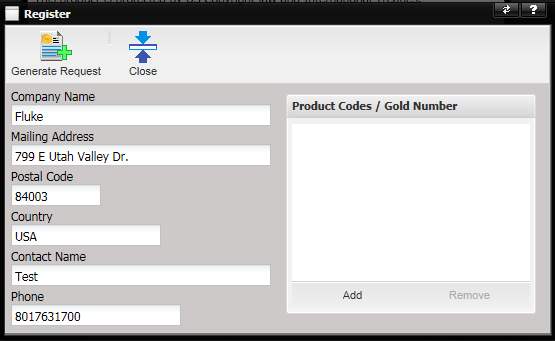
The Register dialog contains information related to the user
that is necessary for submitting a license registration request. The user is
prompted for Company Name, Mailing Address, Postal Code, Country, Contact Name,
and Phone.
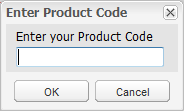
The user
then selects the Add button to enter one or multiple product codes and/or their
Gold Membership number. Each product code must
be entered one at a time.
Note: Product Codes are shipped to the address on
the purchase order at the time of purchase. If you do not have product codes,
please contact your purchasing agent.
For first time registration, include your Gold Membership number and all product codes in the request. At a later time, if you need to register again, the Gold Membership number can be used.
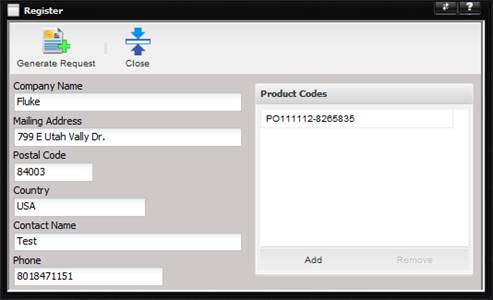
When the Generate Request button is selected, the information provided by the user is translated into a License Request. The Register screen is displayed with the license request displayed.
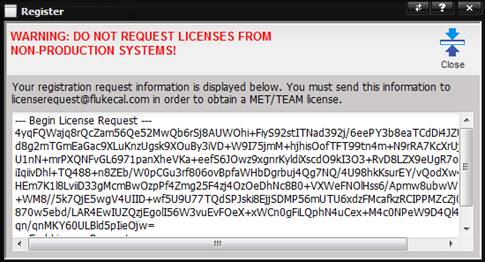
Copy the information exactly as is into the body of an email,
including the ---Begin License Request --- and --- End License Request ---
tags, addressed to licenserequest@flukecal.com.
Do not add additional information to the license registration request.
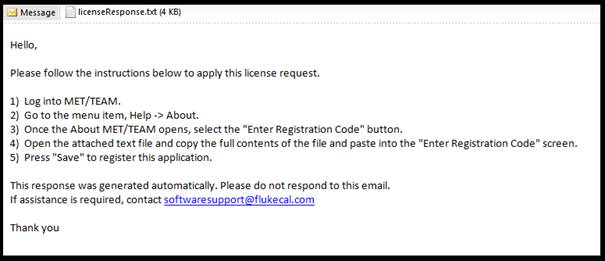
Once your license request is processed and assuming the
license request information was valid, you will receive an email reply from licenserequest@flukecal.com.