The In Work
menu option begins by displaying the Find Work Order dialog for selecting the
Work Order that the user wants to view. The Work Orders displayed are based on
the Customer.
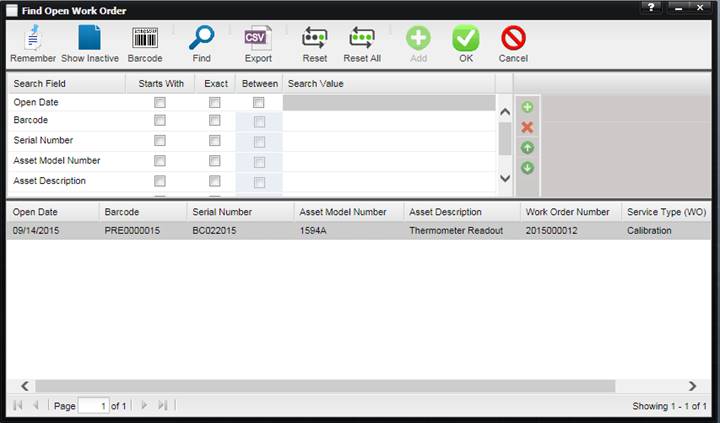
Select the Find button, highlight the Asset you are interested in and select the OK button.
The View Work Order dialog is displayed.
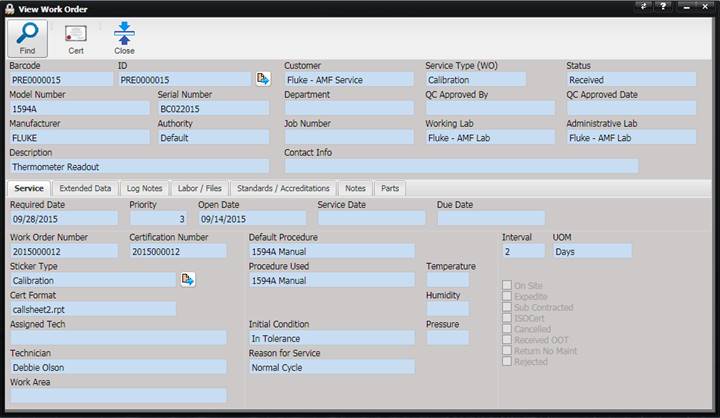
The Asset Data is all the information pertaining to the Asset itself.
·
Barcode –
The unique identifier for this Asset.
No two Assets have the same barcode.
·
ID – An
identifier that can be used to find the Asset.
o
The Asset can be
viewed by selecting the Quick Link
button.
·
Model Number – The manufacturer’s model
designation of the Asset’s characteristics and capabilities.
·
Serial Number –
The manufacturer’s serial number for this Asset.
·
Manufacturer
– The Company that created the Asset.
·
Authority –
Describes the source (ownership) of this type allowing for more than one data
authority to exist.
·
Description
– The description of the Asset.
·
Customer – Indicates the owner of the Asset when the Work
Order was processed.
·
Service Type (WO) –
Shows the service performed which affects which validations run when saving and
closing a Work Order.
·
Status – Displays the current status of the
Work Order.
·
Department –
Indicates the department of the Asset
when Work Order was processed.
·
QC Approved By –
The QA person who reviewed and approved this service event.
·
QC Approved Date -
The date the QA person reviewed this service event.
·
Job Number –
The job number that all expenses are charged to.
·
Working Lab –
The lab that performed the work.
·
Administrative Lab – The lab administratively responsible for the Work
Order.
·
Contact Info - Additional
information for the Work Order that may not be on the facility record or may be
a one-time piece of information.
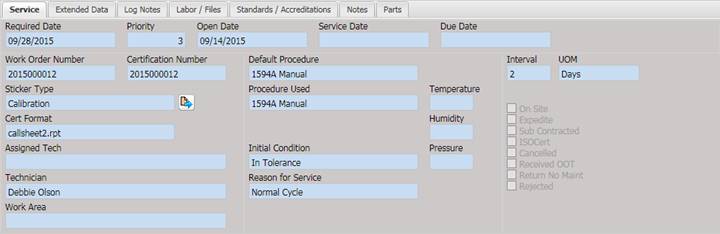
The Service
Tab displays all the information related to the service that was performed and
the procedure used.
·
Required Date
– Date the customer requested the Asset to be back.
·
Priority -
The priority of the Asset in service.
·
Open Date –
Date the Work Order was opened.
·
Service Date
– Date the maintenance was completed.
·
Due Date –
Date the Asset is next due for this type of service.
·
Work Order Number
– The system generated number for this Work Order. This number is unique
throughout the data and is used to track all information about this Work Order.
·
Certification Number – The certificate number for the calibration.
o
To print a
certificate of calibration, use the “Cert” button on the toolbar.
·
Sticker Type
– The type of sticker placed on the Asset after the service is complete.
o
To print the
sticker, select the Print button.
·
Cert Format
– Can contain the report file name for this calibration.
·
Assigned Tech
– The technician assigned to do the service.
·
Technician –The
technician of record for this service event.
·
Work Area –
The area of the lab where the service is being performed.
·
Default Procedure
– The name the procedure recommended for this type of service.
·
Procedure Used
- The name of the procedure the technician used for this Work Order.
·
Initial Condition-The
condition the Asset was in when received.
·
Reason for Service-The
reason the Asset is in for service.
·
Temperature
– The atmospheric temperature at the time the service was performed.
·
Humidity –
The atmospheric humidity at the time the service was performed.
·
Pressure –
The barometric pressure at the time the service was performed.
·
Interval –
The interval of when the next service should be performed.
·
UOM – The
unit of measure for the interval.
·
On Site –
Indicates the service was done or needs to be done on site.
·
Expedite –
Indicates the Asset needs to be expedited through the service process.
·
Sub Contracted
– Indicates this service should be subcontracted.
·
ISOCert –
Indicates the Asset requires an ISO or Accredited certificate.
·
Cancelled –
The Service Facility cancelled this Work Order.
·
Received OOT
– Indicates that an Out of Tolerance condition exists with this Asset.
·
Return No Maint
– Indicates the Asset owner requested the Service facility to close the Work
Order and have the Asset returned with no
maintenance being performed.
·
Rejected –
Indicates that as a result of this Work Order, the Asset was rejected.
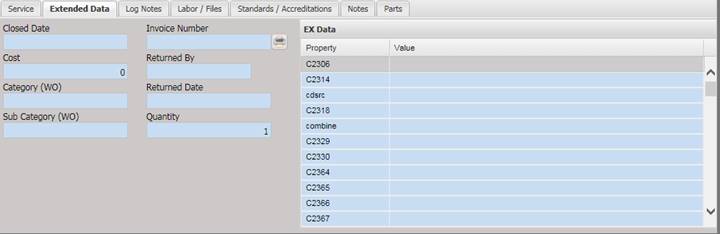
The Extended Data tab displays the extended data elements for Work Order.
·
Closed Date –
Date the Work Order was closed.
·
Invoice Number
–Displays the Invoice number this Work Order was billed on.
o
Use the print
button to print the invoice.
·
Cost – Cost
of the service.
·
Returned By
– Displays the name of the person who performed the return process.
·
Returned Date
- Displays the date the Asset was returned to the customer.
·
Category (WO)
–The category of the labor.
·
Sub Category (WO)
– The subcategory of the labor.
·
Quantity –
The quantity of items being serviced in the Work Order.
·
EX Data -
The data elements that are added by the user.
The Log
Notes tab displays all the activity logged against an Asset. The log is read from top to bottom with the
newest event being at the top.
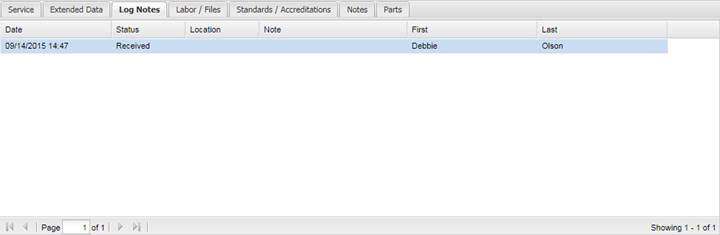
Note: Labor records are not displayed in Customer Portal. Only
File records are displayed.
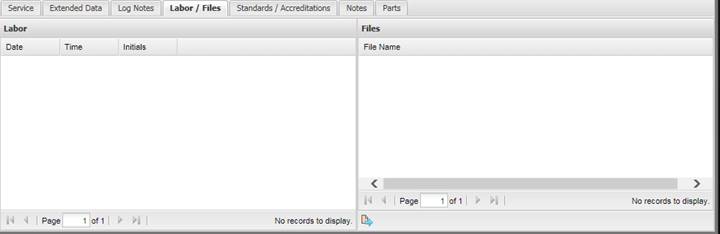
The Labor / Files tab is for recording labor expended on the Work Order (left side of the tab) and for attaching files related to the Work Order.
To open the file in its native application, highlight or
double click the File and select the Quick Link button at the bottom of the
screen.
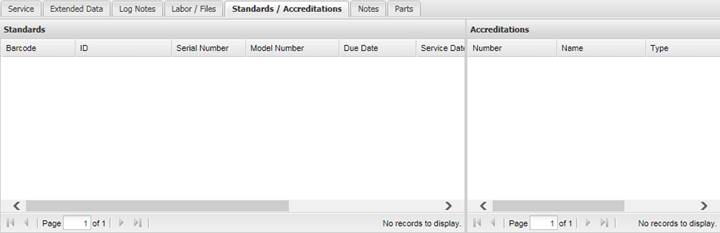
The Standards/
Accreditations tab is for recording standards and accreditations associated
with the Work Order.
The Notes tab allows selecting predefined blocks of text to be inserted for Accuracy, Uncertainty, Out of Tolerance, and General notes.
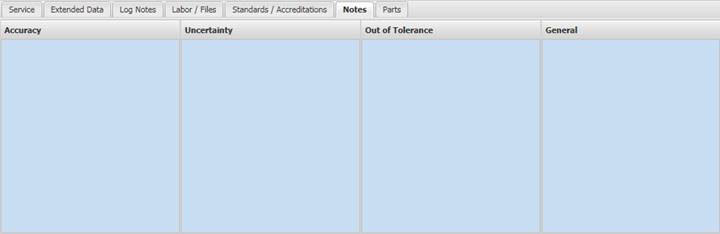
Accuracy Notes – The accuracy statement for this service event. By default, this information is displayed on the certificate of calibration.
Uncertainty Notes – The uncertainty notes for the particular Work Order.
Out of Tolerance Notes – The out of tolerance conditions that may have existed during this service event. If a Data Sheet is used, MET/TEAM automatically records the out of tolerance information and stores the text of the event in this area. This information is used to produce an out of tolerance report to the customer. If an out of tolerance condition exists, this data must exist before an out of tolerance report prints.
General Notes – Provides the technician with an area to record notes for this service event.
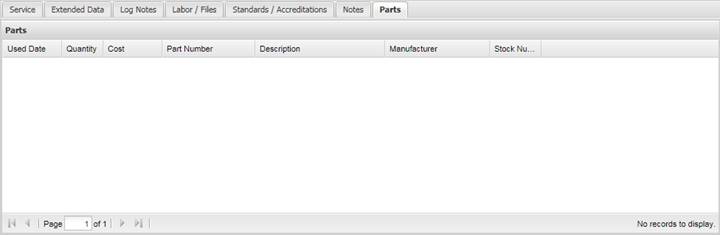
Parts Tab
The Parts
tab is for tracking parts used during the service performed on this Work Order.