The Assets
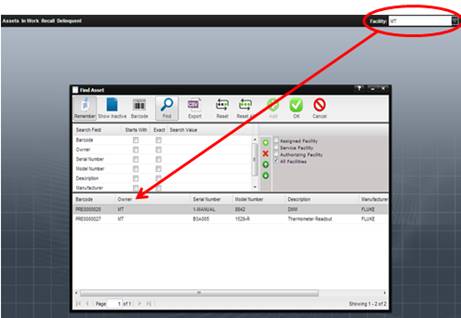
menu option begins by displaying the Find Asset screen for selecting the Asset
that the user wants to view. The Assets displayed are only those that are owned by the Facility displayed in the
Facility dropdown in the top right corner of the application.
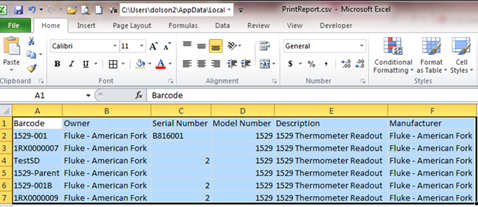
To “export” a list of your Assets,
select the Print button. A file in .CSV format is created and can be opened. For optimal
compatibility, a tab character is used as the delimiter in the .CSV file.
Select the Find button, highlight the Asset you are interested in and select the OK button to view information about the Asset.
The View Asset screen is displayed.
The Asset
tab contains general information about the Asset.
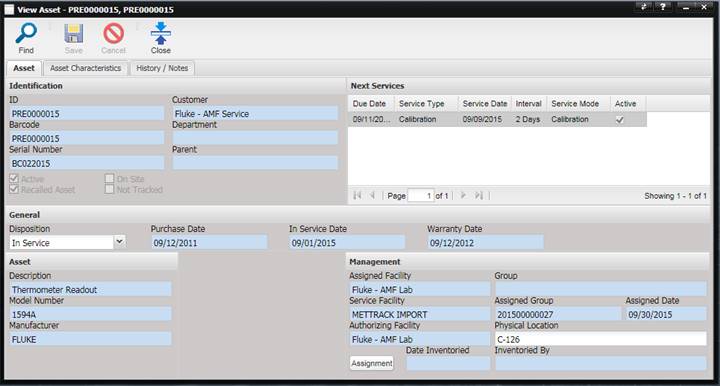
There are two editable fields on the Asset tab: Disposition and Asset Physical Location. By default, Customer Portal users can change the values of these fields for their own assets. After changing a value, select the Save button to save the change, or select the Cancel button to cancel the change.
· ID – An identifier that can be used to find the Asset.
· Barcode – The unique identifier for the Asset. No two Assets can have the same barcode.
· Serial Number – The manufacturer’s serial number.
· Customer – The company or entity that owns the Asset.
· Department – The department where this Asset belongs.
· Parent – If not empty, indicates this Asset is part of a system or a child of another Asset.
· Active – If checked, the Asset is actively being used. Some Assets may be recalled but are not currently in the actively used Asset list.
· Recalled Asset – If checked, the Asset is included on the recall reports.
· On Site – If checked, the Asset maintenance is performed on site.
· Not Tracked – If checked, the Asset is not tracked as a part of MET/TEAM. This Asset would not show up on recall reports. The Asset would just exist in the system but not be accounted for. This usually pertains to expendable items such as screws, nuts/bolts, rubber gloves or un-serialized Assets such as desks, chairs, file cabinets, etc.
· Disposition – The current status of the Asset. This field is editable and can be updated by Customer Portal users.
· Purchase Date – The date the Asset was purchased.
· In Service Date – The date the Asset was made active and placed into service.
· Warranty Date – The date the warranty for this Asset expires.
· Due Date – The date the Asset is due for maintenance.
· Service Type – The service that is expected to be performed on or before the Due Date.
· Service Date – The date the service was last performed.
· Interval – Indicates the service interval.
· Service Mode – The service type to be performed.
· Active – Indicates if service is active.
· Asset Description – The description of the Asset.
· Model Number – The manufacturer’s model designation of the Asset’s characteristics and capabilities.
· Manufacturer – The company that created the Asset.
· Assigned Facility – The facility that assigns the Assets work. This facility would schedule this Asset as a part of the work load for itself or another facility.
· Service Facility – The facility that performs the service.
· Authorized Facility – The facility that authorized the funding for the work to be done on this Asset.
· Group – Used for reporting purposes and allows this Asset to be grouped with other Assets.
· Assigned Group – The name of the group this Asset is assigned to.
· Assigned Date – The date the Asset was added to the Assigned Group.
· Asset Physical Location –The last known physical location of the Asset. This field is editable and can be updated by Customer Portal users.
· Date Inventoried – Date the Asset was last inventoried.
· Inventoried By – Indicates person who last inventoried this Asset.
The Asset
Characteristics tab displays additional information that can be collected for
the Asset.
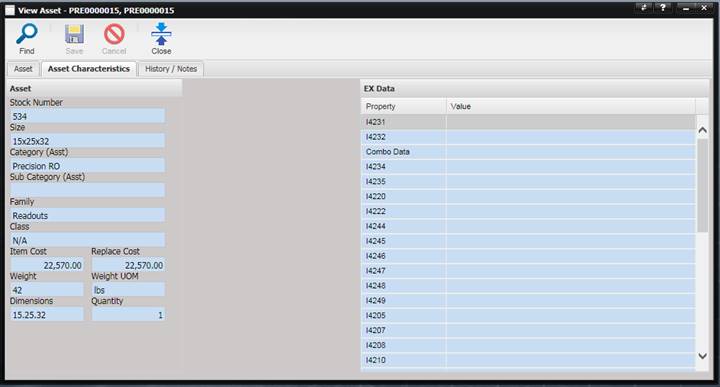
Asset Characteristics and Extended Data is viewable from this tab.
· Stock Number - The stock number of the Asset.
· Size - The size of the Asset.
· Category (Asst) – The general category of the Asset.
· Sub Category (Asst) – The sub category of the category for this Asset.
· Family – Specifies like data for one or more Assets.
· Class - Another field to specify like data for one or more Assets.
· Item Cost – The purchase price of the Asset at the time of purchase.
· Replace Cost – The cost required to replace the Asset.
· Weight – The physical weight of the Asset.
· Weight UOM – Unit of measurement for the weight.
· Quantity – The quantity of items contained in this Asset. Allows for grouping Assets in a set.
· Dimension – The physical dimension of the Asset.
· EX Data – Extended data associated with the Asset.
The History / Notes tab displays the service history and notes associated with the Asset.
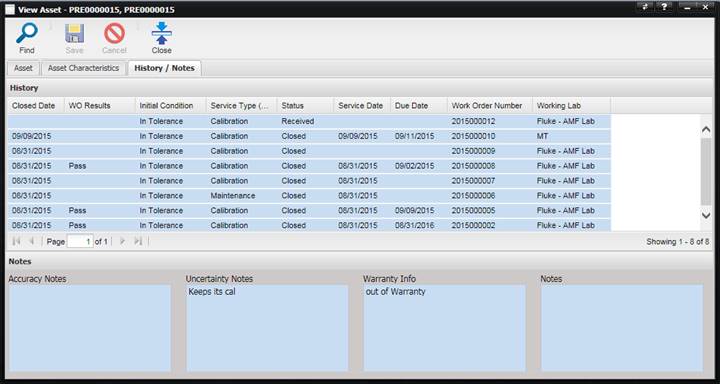
This grid shows all service events (Work Orders) recorded against this Asset. To view the event, double click the selected history event and the associated Work Order is opened. All history events are read only and cannot be changed by the user. See the “In Work (Customer Portal)” section of this manual for details regarding information on the page that opens, because they are the same.
The Notes section contains information related to accuracy, uncertainty, warranty, and general notes.
· Accuracy Notes – Notes specific to instrument accuracy.
·
Uncertainty Notes –
Notes specific to instrument uncertainty.
· Warranty Info – Warranty information for this Asset.
· Notes – These are general notes for this Asset.