The Files tab displays files related the Tool Assignments. Files may be related either by Attach File (attaches an existing file) or by Upload File (uploading a new file). The buttons to the right of the grid can be used to add, delete, or view files.
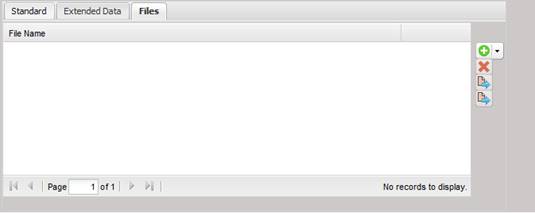
Adding a File (Attach or Upload)
When the “+”button on the right is selected, the user is presented with two options: Attach File or Upload File.
Note: MET/TEAM can only
upload files that are 50mb or smaller.
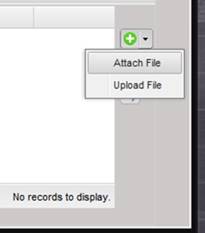
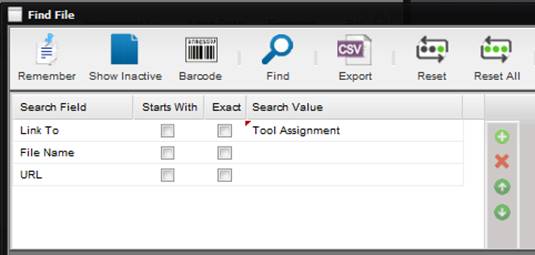
To attach an existing file to a Tool Assignments, select the Attach File option. The Find screen is displayed for finding the File to add. Notice the ‘Link To’ search field contains the search value of “Tool Assignment”. Press the Find button. The Files displayed are those files that were previously added using the Maintenance menu Files submenu and were categorized with a ‘Link To’ entry of “Tool Assignment”. Select the file to attach from the results grid and press OK.
To attach a new file or URL to a Tool Assignments, select the Upload File option. This option adds the File (as if the user had used the Maintenance menu Files submenu) and at the same time attaches the new File to the current Tool Assignments.
The Add File screen is displayed. Notice the ‘Link To’ field contains the value of “Tool Assignments”.
·
To upload a file,
leave the URL check box unchecked, check the Active check box, and press the
“Browse…” button.
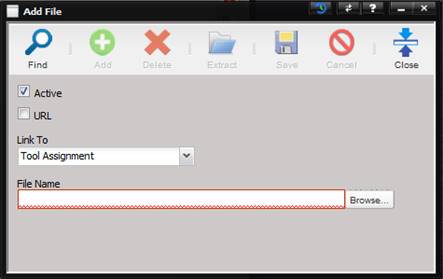
The Windows Choose File to Upload screen is displayed. Navigate to the file that is needed and select this file by double clicking. The File Name text box now contains the name of the file just selected. Select the Save button and the Add File screen closes. The file just uploaded is now displayed on the Tool Assignments Files tab.
·
To enter a URL,
check the URL checkbox check the Active check box, enter a filename in the File
Name text box, and enter a URL in the URL text box.
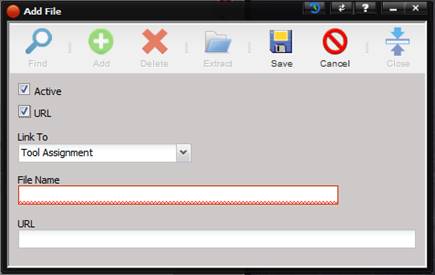
Select the Save button and the Add File screen closes. The URL File Name is now displayed on the Tool Assignments Files tab.
Deleting a File
To remove a File, highlight the record in the grid on the Files tab and select “X” button on the right of the Files tab.
Viewing a File
To view the selected File, highlight the record in the grid on the Files tab and select the Quick Link button (the 3rd button) on the right side of the Files tab.