The Combined Calibration option is used to combine Work Orders for one particular Asset. Although this capability can be used for any Work Order, it was include for MET/CAL users compatibility.
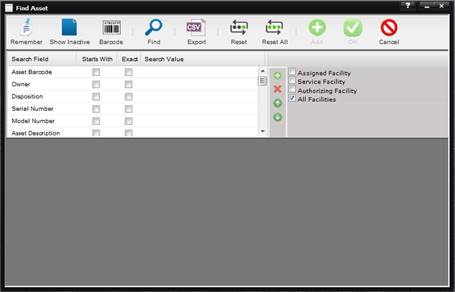
When the menu option is selected, the Find Asset screen is displayed for selecting the Asset whose calibrations will be combined.
The Combined Work Orders dialog is used to select and order the Work Orders that are to be combined.
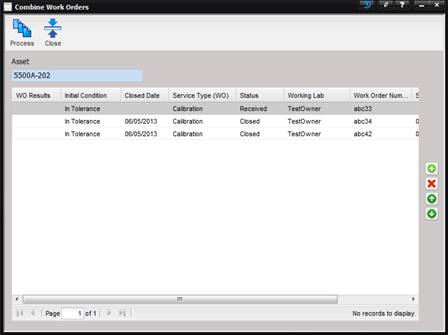
· Asset – The Asset for which the Work Orders will be combined.
· Asset Grid – Contains the Work Orders that will be combined.
Note: The top Work Order is considered the MASTER Work Order.
o Use the “+”button to add this Asset’s Work Orders to the grid.
o Use the “X” button to delete this Asset’s Work Orders from the grid.
o Use the “↑” and “↑” buttons to move the Work Orders up and down in the grid.
o Work Orders of any status can be added to the grid.
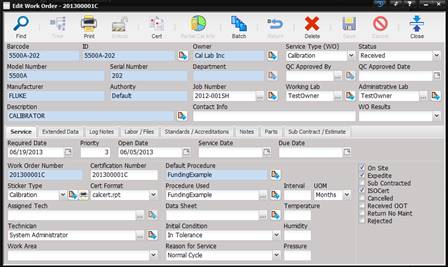
The Process toolbar button creates the
combined Work Order and opens that Work Order in edit mode.
·
Work Order Number –
The Work Order number of this newly generated Work Order. The number is
appended with a “C” to designate this as a Combined Calibration.
·
Certification Number – This number is the same as the Work Order number.
All data except for the standards, data points, and extended data are copied from the MASTER Work Order.
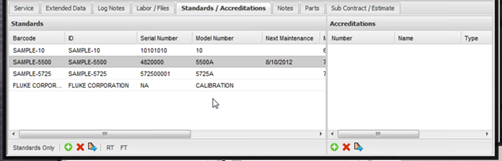
The
standards are a unique list based on all work orders that were combined. If
standards were used on multiple Work Orders, each standard only appears once in
the Standards grid on the Work Order Standards / Accreditations tab.
The data points and extended data are concatenated together from all the Work Orders.
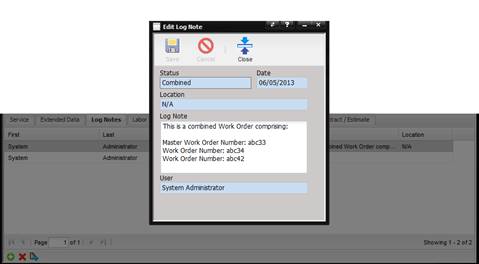
A Log Note is appended to the Log Note from the MASTER Work Order. The new Log Note states the Master Work Order and all other Work Orders that were combined.