The Files option stores external files in the MET/TEAM
database allowing for document management. By default
the maximum size allowed is a 50MB file. Once stored the user can
reference the document within MET/TEAM components (such as Work Orders). These
files are stored in the database, removing the need for external file
management and security.
MET/TEAM also supports files on network shares as well as on
the internet. These files are not stored in the database. They are linked to by
the URL field.
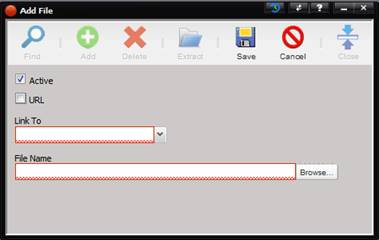
·
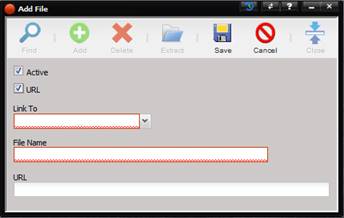
URL – If checked,
the screen refreshes displaying a text box for entering a URL. Files are now
supported that exist on a network share as well as on the internet.
·
Active –
Marks the file as active or inactive. If unchecked, the file is inactive and is
not displayed in pick lists within MET/TEAM.
·
Link to (required) –
A dropdown list for selecting where the File is linked.
o
Indicates where
the File is linked (Facilities, Procedure, Types, etc.) and affects where the
File appears in MET/TEAM.
o
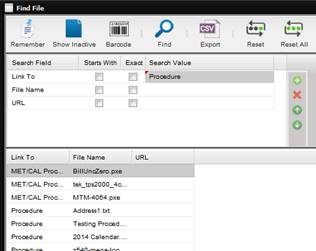
For example if Procedure
is selected from the Link To dropdown, when adding Files to a Procedure (on the
Procedure screen) screen, the Find File screen displays Procedure in the Link
To Search Field.
·
File Name (required) – The name of the File.
o
IF the URL
checkbox is not checked, select the Browse
button which opens the Windows Open dialog for selecting the file. The File
Name is the actual name of the File selected by the user.
o
If the URL
checkbox is checked, the File Name
is the user facing identifier. This File Name does not have to be the name of
the file but can be.
·
URL – The
URL for this File.
o
Paths starting
with the server name "\\servername" or file protocol
"file://servername" are supported.
§ Due to security in Firefox and Chrome, links to these
types of paths are blocked. In order to support this, it must be handled on the
server side. This means the MET/TEAM server must have access to the network
share, as well as the appropriate permissions to access files on the network
share.
o
Also supported
are files on the internet, paths starting with "http://" and
"https://" which are accessed directly by the client.
o
The URL field
must contain the full path to the file including the name of the file.
The Extract button opens the file in its native application (Word, Excel, etc.).