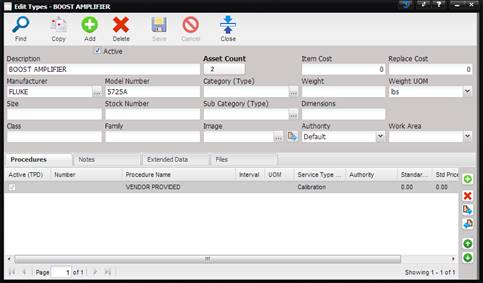
The Type screen contains Data Fields for entering information related to the Type.
·
Active –
Indicates whether or not this Type shows up on pick lists.
·
Description
– The text describing the Type.
·
Manufacturer
– the company that manufactured this instrument. Manufacturers cannot be added
from this screen. They must be added using the Maintenance -> Facilities
menu option.
o
The manufacturer
can be changed by selecting the “…” button.
·
Model Number
– The number given to the Type by the manufacturer that references capabilities
and specifications.
·
Size – The
physical size of the Type.
·
Stock Number
– The stock number of the Type.
·
Class -
Allows the user another field to specify like data for one or more Assets.
·
Family –
Allows the user another field to specify like data for one or more Assets.
·
Asset Count –
Indicates the number of Assets that are referenced to this Type.
o
To view the Assets,
click the Asset Count button.

§
The Find dialog
is displayed.
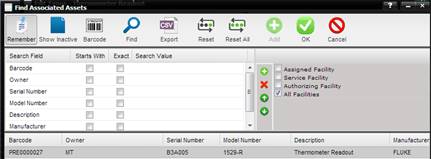
§ Select the Find button and the Assets are displayed in
the grid portion of the Find dialog.
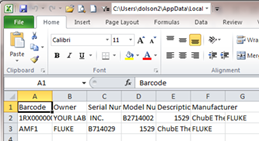
§ Select the Export button and a .CSV file is created which
can be opened in Excel. The fields in the .CSV file match the search and grid
fields
·
Category (Type)
– Indicates the general category of the Type. Could contain such data as
Electronic, Dimensional, Mass, Laser, Flow, etc.
·
Sub Category (Type)
– Indicates the sub category of the selected category for this Type. Could
contain such data as Power Meters, Handheld Meters, Scopes, etc. (To manage
categories and sub categories, see the section entitled Categories and Sub Categories)
·
Image –Links
to an image file for this Type.
o The image can be changed by selecting the “…” button.
o The image can be viewed by selecting the Quick Link button.
·
Item Cost –
Indicates the cost of the Type at the time of purchase.
·
Replace Cost
– Indicates the cost required to replace this Type.
·
Weight –
Indicates the physical weight of the Type, mainly used for shipping or
determining how many people are needed to move the Type.
·
Weight UOM –
The unit of measure for the weight.
·
Dimensions –
Indicates the physical dimensions of the Type.
·
Authority –
Describes the source of this data. Example would be Manufacturer, NAVAIR,
NAVSEA, SYSCAL, etc.
·
Work Area –
The Area of the Service facility that would normally to do the work on the
Type. Area may be an area such as “Electronic” or an area may be defined as a
room or location. This information is used as a default to assist the MET/TEAM
user in doing workload planning.