When the File menu Mobile submenu Check-Out option is selected, the Select Facilities screen is displayed. Select the Facilities that own the Assets that you plan to work with while you are off site using the Mobile feature. After the facilities have been selected, the Check- Out process creates the METMobile.exe application which is used to install and configure a snap shot of the MET/TEAM website onto the mobile PC, reserve licenses on the server, and make a copy of the MET/TEAM database with only the records associated with the selected Facilities.
The user is prompted to run, save, or cancel the METMobile.exe application download (the screenshot below assumes an Internet Explorer browser is being used – the dialogs may be different depending on the browser being used). Select Run to launch the MET/TEAM Mobile Software Check-Out application.
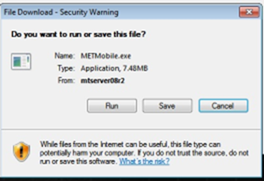
The user may need to respond to
additional prompts, including a UAC prompt to run the application.
As this application is being downloaded, the user is logged off from the MET/TEAM server automatically. The browser window should be closed at this time.
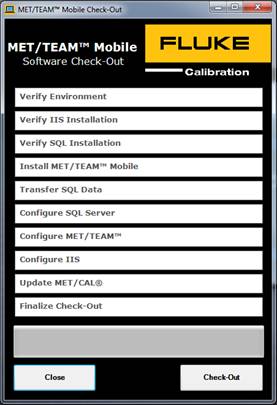
The MET/TEAM Mobile Software Check-Out screen is displayed. To start the Check-Out process, select the Check-Out button.
Each step displayed on this dialog changes color as it is being executed and once it has been successfully completed.
If the MET/TEAM database is fairly large in size, a message may be displayed indicating the estimated Check-Out time. This size is only an estimate and may vary greatly depending on your network speed and traffic as well as the hardware performance of the mobile PC. Also, if the database size is approaching or exceeds 10GB and MET/TEAM detects the mobile PC is using an Express edition of SQL Server®, a prompt is displayed warning the user. The maximum database size supported by Express editions of SQL Server® is 10GB.
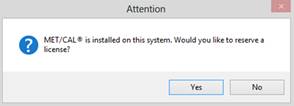
If MET/CAL is installed on the mobile PC, a prompt is displayed asking if a MET/CAL license should be reserved for this mobile PC. If MET/CAL is used on the mobile PC, you must select Yes. This copies the MET/CAL shared files from the server to the mobile PC and configures MET/CAL to use the local copy of these files. If No is selected, MET/CAL is not allowed to be used on the mobile PC while checked out.
When the Check-Out process is complete, a shortcut is created on the desktop for launching the MET/TEAM Mobile website on the mobile PC.
Note: You should avoid running MET/TEAM from the
server on the mobile PC once MET/TEAM Mobile is configured to reduce potential
confusion.
The MET/TEAM Mobile Check-Out process reserves one MET/TEAM Mobile license on the server for this PC and optionally reserves a MET/CAL license on the server.
The mobile instance of MET/TEAM includes one MET/TEAM license and one MET/TEAM Mobile license. If the server has a MET/TEAM Commerce license, one MET/TEAM Commerce license is also included in the mobile instance. One MET/CAL license is also included if the user chose to reserve a MET/CAL license.
When the MET/TEAM Mobile website is launched, all licenses are given expiration dates of two months from the current date. The Check-In process must be performed within this period or the licenses will have expired.
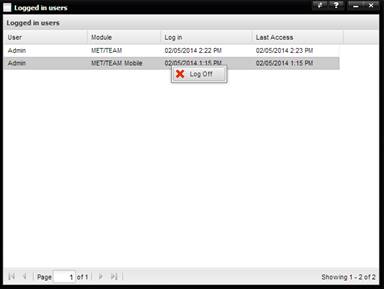
In the case of an expired mobile workstation Check Out, reserved licenses can be released using the Help menu About submenu Logged In Users screen on the main MET/TEAM website. Right-click on a reserved MET/TEAM Mobile license and select Log Off from the popup menu.
Note: Releasing a
MET/TEAM Mobile license prevents the mobile PC from being able to do a Mobile
Check In! Never release a MET/TEAM Mobile
license unless you are absolutely sure that the data on the mobile PC does not
need to be checked in!