Once you have completed using the mobile PC, a mobile Check-In needs to be performed to update the MET/TEAM server database. The File menu Mobile submenu Check-In option is only available when running the MET/TEAM Mobile website on a mobile PC. The Check- In operation can only be performed when the mobile PC is connected to the network and has access to the MET/TEAM server. After the Check-In option is selected, a new METMobile.exe is generated which removes the local MET/TEAM Mobile web site and desktop shortcut, and updates the master database on the server with changes made while checked out.
The user is prompted to run, save, or cancel the METMobile.exe application. Select run to launch the MET/TEAM Mobile Check-In application download (the screenshot below assumes an Internet Explorer browser is being used – the dialogs you see may be different depending on the browser being used). Select Run to launch the MET/TEAM Mobile Software Check-In application.

The user may need to respond to
additional prompts, including a UAC prompt to run the application.
As this application is being downloaded, the user is logged off from the MET/TEAM Mobile website automatically. The browser window should be closed at this time.
The MET/TEAM Mobile Software Check-In screen is displayed. To start the Check- In process, select the Check-In button.
Each step displayed on this screen changes color once as it is being executed and once it has been successfully completed.
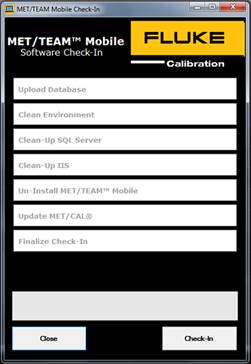
If the MET/TEAM Mobile database
is fairly large in size, a message may be displayed indicating the estimated
Check-In time. This is only an estimate and may vary greatly depending on your
network speed and traffic as well as the hardware performance of the mobile PC.
When the Check-In process is
complete, the MET/TEAM Mobile shortcut is removed from the desktop of the mobile
PC and the reserved licenses on the server are released.
If a MET/CAL license was reserved
on Check-Out, the MET/CAL configuration on the local PC is restored to point to
the shared folder on the server.
Note: If any of the MET/CAL shared files in the
temporary location on the mobile PC were altered, the user must manually copy
the altered files back to the MET/CAL share on the server.