Press Finish, which will close the OLE DB (ADO) dialog and get us back to the Database Expert window, where METTEAM is now available under OLE DB (ADO). Expand the dbo (database owner) node to list the types of items we can add to the report, namely Tables, Views and Stored Procedures.
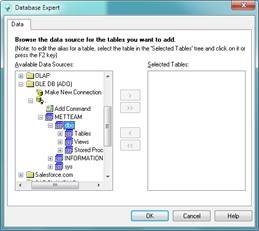
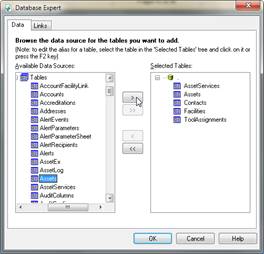
Select the following tables, copying each to the right box using the arrow > button and then click OK:
·
Assets
·
AssetServices
·
Contacts
·
Facilities
·
ToolAssignments
The Database Expert will now show the linking between the tables.
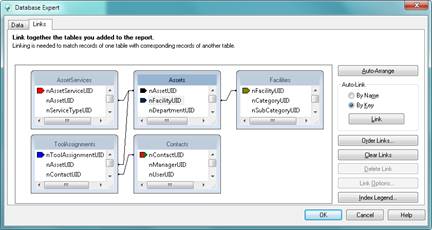
Our Report will be a simple Assets Due for Calibration Report. In order to select the data used in the report it is necessary to understand which MET/CAL tables we will be using and how they are linked.
For our report we will need fields:
Assets.cID Asset ID
Facilities.cFacilityName Manufacturer
Assets.cModelNumber Model
Assets.cDescription Description
Contacts.cFirstName User (First) Name
Contacts.cLastName User (Last) Name
AssetServices.tNextMaintDate Cal Due Date
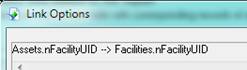
The link between Assets and AssetServices as well as ToolAssignments is via the nAssetUID field in each of the tables. The Contacts to ToolAssignments link is via the nContactUID field in both tables. Each of these links is found automatically by the Databases Expert. For the link from Assets to Facilities, we need to make sure that we get the facility for the manufacturer, via the nManufacturerUID in Assets. The automatic smart link performed by the Database Expert defaults to the Asset’s owner link, i.e. nFacilityUID in Assets is linked to nFacilityUID in Facilities.
Right-click the link between Assets and Facilities, and select Link Options.
To relink Assets and Facilities correctly, let’s delete the automatic link and insert a new one. Highlight the link between Assets and Facilities, so it turns blue, and press the Delete Link button.
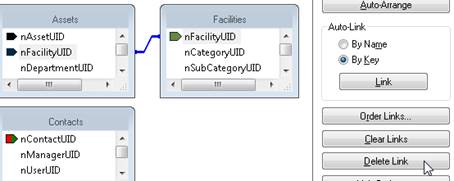
Now locate nManufacturerUID in the Assets field list and drag the pointer symbol to the nFacilityUID column in the Facilities field list. A new link is established, highlighted in blue. Double-check we have the correct link by right-clicking on it and selecting Link Options again.
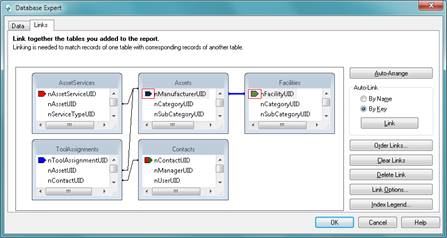
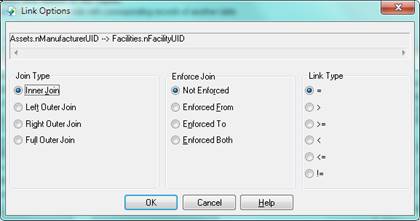
Now, Assets and Facilities are joined correctly and Facilities.cFacilityName in our result set will reflect the Asset’s manufacturer name.