Adding Facilities to Job Numbers
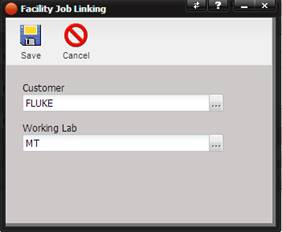
To add a Facility to this job number, begin by selecting the “+” button. When the Facility Job Linking screen is displayed, select the “…” button next to the Customer text box. Select the desired Customer and then the Save button. The facility is added to the Facility Management grid.
To remove a facility, select the “X” delete button.
To view information pertaining to a Facility, select the Quick Link button on the right of the Working Lab grid.
o
If the Working
Lab does not have an associated Customer name and the Quick Link button is
selected, the following message is displayed.
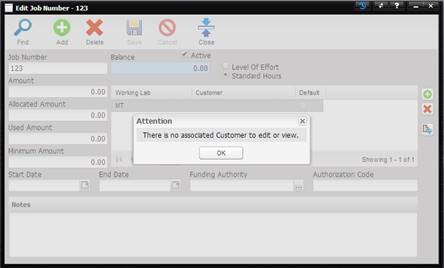
o To enter a customer, the Working Lab must be deleted. Highlight the Working Lab that does not have a customer. Select the “X” on the right hand side of the grid. Now use the “+” button to add a Working Lab making sure to select a Customer on the Facility Job Linking screen.
Facilities can be sorted by ascending or descending order by clicking on the header of the column.