When Windows Authentication is not active, the MET/TEAM Log-In screen is displayed when the MET/TEAM icon is selected from the user’s desktop or the URL is entered into a Web browser.
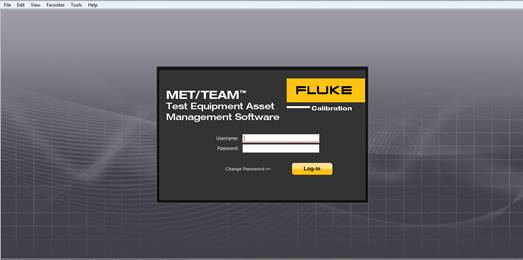
To login, enter your username and then enter your password. These should have been assigned to you by the Administrator of your MET/TEAM site. If you are the Administrator, you begin by entering in the Administrator username and password and then use the Setup menu Users submenu to add users. Refer to the MET/TEAM Installation Guide for the default Administrator username and password.
Select the Log-in button. If you are not assigned to multiple Labs, the main MET/TEAM screen is displayed
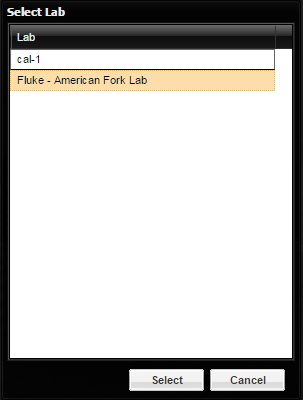
If you are assigned to multiple Labs, the Select Lab screen is displayed with your default Lab highlighted.
·
Press the Select
button to continue to the main MET/TEAM screen logging in to the default Lab.
·
Highlight a
different Lab and then press the Select button to continue to the main MET/TEAM
screen logging into a Lab other than your default Lab.
·
Press the Cancel
button to return to the Log-In screen.