When Windows Authentication is active, the MET/TEAM Log-In screen is not displayed when the MET/TEAM icon is selected from the user’s desktop or the URL is entered into a Web browser.
Note: When Windows
Authentication is active, MET/TEAM users must be setup with their Windows
username as the MET/TEAM Username on the MET/TEAM User screen (Setup menu Users
submenu).
If you are not assigned to multiple Labs, the main MET/TEAM screen is displayed
If you are assigned to multiple Labs, the Select Lab screen is displayed with your default Lab highlighted.
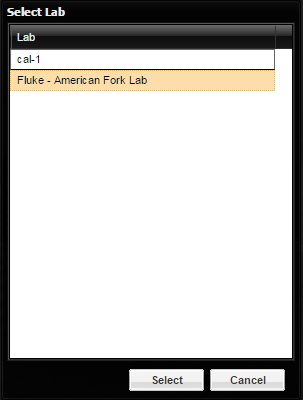
·
Press the Select
button to continue to the main MET/TEAM screen logging in to the default Lab.
·
Highlight a
different Lab and then press the Select button to continue to the main MET/TEAM
screen logging into a Lab other than your default Lab.
· Press the Cancel button. You are prompted to close the browser. Selecting Yes causes the browser to try and close the browser tab. Based on your browser security settings, this will not always work. In the case that your browser prevents this action, the tab is left in a clean state and may be manually closed. Selecting No, leaves the browser in a clean state ready to be manually closed.