Receiving – Receiving Details
The Receiving Details tab is for entering information that will be used on the Work Order.
Note: Information entered here applies to all of the Assets in the
Received Assets Grid.
Highlight different Assets in the Received Assets grid to change information pertaining to that Asset.
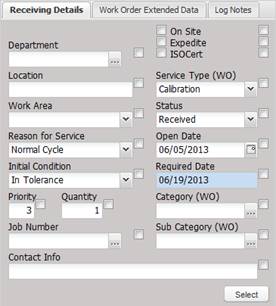
·
Department – The department for the selected Asset.
· Location – The location where the Asset physically resides and is saved in the log notes once the Asset is received.
· Work Area – The area of the service facility into which these Assets are received.
· Reason for Service-The reasoning the item is in for service.
· Initial Condition – The condition of the Asset upon receipt.
· Priority- The priority of the item in service.
· Quantity – The quantity of Asset pieces, with only a few exceptions (gage blocks) this value is always 1.
· Job Number – The job number this service is being charged to.
o The job number can be changed by selecting the “…” button.
· Contact Info – Additional information for the Work Order that may not be on the facility record or may be a one-time piece of information.
· On Site – Indicates service must be performed on site.
· Expedite – Indicates the customer needs these Assets expedited through the service process.
· ISOCert – Indicates an Accredited Cert needs to be provided for these Assets.
· Service Type (WO) – The type of service that is to be performed against these Assets.
Note: Service Type cannot be
customized. The values in this dropdown are setup using the Setup menu Services
submenu screen. The order of the Service Types in the dropdown is based on
which Service Type was edited last using the Setup menu Services submenu.
· Status – The status these Assets were received under. A log event is created with this status when the Work Order is created.
· Open Date – Date the Work Order is opened defaults to the date the receiving process occurred. This date carries forward to the Work Order.
· Required Date –The date the customer has requested to get the Assets back from service. By default this date is blank. There is a system default that causes this date to automatically populate with a pre-defined date.
· Category (WO) – The category of the Work Order. This data is not required but can be used to classify service type or level (silver, gold, platinum, etc.).
· Sub Category (WO) – The sub category of the Work Order. This data is not required but can be used to break down categories of Work Orders.
The checkbox to the right of each data field works as a LOCK button.
·
If the checkbox
is selected (locked), the entered data is attached to each Asset in the
Received Assets grid.
·
If the box is
unchecked (unlocked), different data can be entered for each Asset in the grid.
·
If the box is
unchecked and left blank, data is not saved for that Asset.
Use the “Select” button to check all boxes.
Once the information is entered for the Asset(s), the Process button can be pressed. MET/TEAM creates a Work Order for each Asset in the group.
Reporting from the print button is then available and the reports are driven by the information in the System Defaults table.
A barcode can be printed after the Assets have been “processed” by highlighting the Asset in the Received Assets grid and selecting the Barcode button.