Recall is
used to review and produce customer recall reports, based on a date range which
can be narrowed down by customer (owner), physical location and department. An
additional filter can be applied to exclude Assets on site or in house.
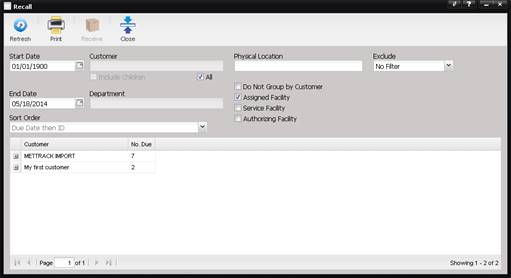
The grid displays the Assets due for maintenance during the specified date range and are grouped by customer in a tree structure. The tree can be expanded by pressing the “+” button and collapsed by pressing the “–“ button. To view the Assets in a straight list, check the “Do Not Group By Customer” check box and select the Refresh button. To view an Asset in the list, highlight the Asset in the grid and double click.
· Start Date – The starting date of the recall report.
o
For a date
picker, select the calendar button.
· End Date – The ending date of the recall report.
o
For a date
picker, select the calendar button.
· Sort Order – Used to determine the order of the data in the grid and on the report.
· Customer – Limits the scope to one customer (owner).
o The Customer can be changed by selecting the “…” button.
- Include Children–When checked, all Assets belonging to the selected facility and all children of the selected facility are included. This is only available when “All” is not selected.
Example: Let’s say
there is a Facility called “Fluke” with children facilities called “Fluke –
Service” and “Fluke – Cal Lab”. If this check box is selected and the Customer
is “Fluke”, all Assets with the owning Facility of “Fluke”, “Fluke – Service”,
and “Fluke – Cal Lab” will be displayed. If this check box is not selected,
only the Assets owned by “Fluke” will be displayed. (See the section about the
Facility sub menu under the Maintenance menu for details on adding Facilities
and children facilities.)
- All – If checked, the recall reports include all customers for the designated date range and the Customer and Department selection options are disabled.
· Department – Allows the user to select a department. Based upon a System Default, “DepartmentBypass”, this information represents one of two elements.
o If the System Default is inactive, the department must be a child facility of the Customer.
o If the System Default is active, the Department does not have to be a child facility of the Customer.
o The inactive state is most commonly used to assign Assets to facilities that belong to an Asset pool or tool crib. The department would then indicate the facility that currently has possession of the Asset so the recall notice would go to the correct facility.
o The department can be changed by selecting the “…” button.
· Physical Location – Used to filter for a specific location or leave blank for all.
· Do Not Group by Customer – If checked, the data is displayed without grouping by Customer. If checked, the System Default “Recall – No Group” determines the report used.
· Assigned Facility – If checked (default state), only Assets with an Assigned Facility that matches the user’s logged in facility will be included in the Recall list. The user’s logged in facility is displayed in the top right of the MET/TEAM page.

· Service Facility – If checked, only Assets with a Service Facility that matches the user’s logged in facility will be included in the Recall list. The user’s logged in facility is displayed in the top right of the MET/TEAM page.
· Authorizing Facility – If checked, only Assets with an Authorizing Facility that matches the user’s logged in facility will be included in the Recall list. The user’s logged in facility is displayed in the top right of the MET/TEAM page.
· Exclude – Used to filter as desired for “On Site” or “In House” items. Leave blank and all items are included.
Note: The Assets returned when the Assigned Facility, Service Facility, and
Authorizing Facility are checked must match one or more of the check box
options. The results are not
exclusive.