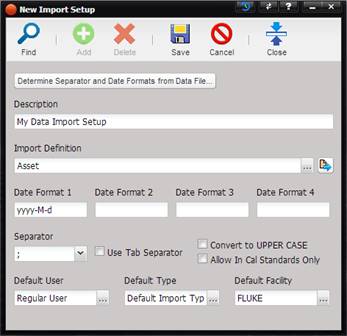
The Import Setup allows for specifying date formats found in the data file and the data separator used, as well as options to reject calibrations performed with out-of-cal standards and enforcing all upper case character entries. Default user, type, and facility records must be selected as fallbacks for missing referential data in the data file. Determining the separator and date formats used in the data file can be automated by uploading the data file to be imported via the “Determine Separator and Date Formats from the Data File…” button. The New Import Setup screen is displayed.
·
Description
– The description for this import
setup.
·
Import Definition –
The Import Definition to be used.
o The Import Definition can be changed by selecting the “…” button.
o The Import Definition can be viewed by selecting the Quick Link button.
·
Date Format 1, Date Format 2, Date Format 3, and Date
Format 4 – Enter up to 4 different
date formats.
o
Use M[M] for
month, d[d] for day and yyyy for year.
For example, if the data
file contains a date formatted as 2000-12-31, enter the following 4 formats:
yyyy-MM-dd
yyyy-MM-d
yyyy-M-dd
yyyy-M-d
which covers dates like the following:
2000-12-31
2000-12-1
2000-1-31
2000-1-1
o
If there are
variations in the date formats other than month/day variations , for example a
mixture of 2000-12-31 and 12/31/2000 in the same file, data cleanup should be
performed before attempting to import the file.
·
Separator – The
data separator used in the file.
o
For a tab
delimited file, check the Use Tab check box.
o
To automatically
detect date formats and separator from the data file, press the “Determine Separator
and Date Formats from Data File…” button. If successful, the four date format
fields are populated as well as the separator dropdown. If it cannot determine
the formats and/or separator from the data in the file, the according entry
field will remain empty.
o
To not allow
importing calibrations where the standard used was out of cal, check the Use In
Cal Standards Only check box.
o
To convert all
data to UPPER CASE, check the Convert to Caps check box. Note that this option
is comprehensive and may lead to senseless and/or ambivalent unit prefixes
(e.g. MV instead of mV).
·
Default User –
The user to be used for data elements requiring user information that is not
explicitly provided in the data file.
o
The Default User
can be changed by selecting the “…”
button.
o
Recommendation:
create a user specifically for this purpose and name it appropriately, so
imported records can be easily identified, e.g. DefaultImportUser.
·
Default Type –
The type to be used for data elements requiring type information that is not
explicitly provided in the data file.
o
The Default Type
can be changed by selecting the “…”
button.
o
Recommendation:
create a type specifically for this purpose and name it appropriately, so
imported records can be easily identified, e.g. DefaultImportType.
·
Default Facility –
The facility to be used for data elements requiring facility information that
is not explicitly provided in the data file.
o
The Default Facility
can be changed by selecting the “…”
button.
o
Recommendation:
create a facility specifically for this purpose and name it appropriately, so
imported records can be easily identified, e.g. DefaultImportFacility.