In order to import files into MET/TEAM, the System Defaults for Import – Data Directory and Import – Files Directory needs to be set up. To get to the System Defaults, select the Configure menu (which is only available if you have Administrative or Configure rights), page down the alphabetized list until you see the two import defaults.
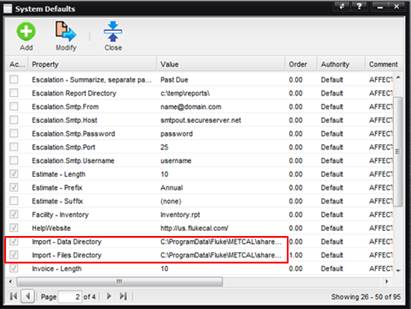
Import – Data Directory is used by MET/TEAM to store temporary data – do not use for storing data
Import – Files Directory is where the files are to be placed
In the data file to be imported, the files are then referenced simply by their file name, for example: Report 110210133.PDF and the import will look for a file of that name in the location specified in the system default: Import – Files Directory.
Example data file, using a pipe symbol as the separator:
Files.cFileName|Files.cFileType|Files.iFile
Report 110210133.PDF|Problem Report|Report
110210133.PDF
Report 110210134.PDF|Problem Report|Report
110210134.PDF
Report 110210135.PDF|Problem Report|Report
110210135.PDF
Files.cFileType can be one of the following:
Accreditation
Work Order
Checklist
Image
Problem Report
Procedure
Project
Tool Assignment
Type
Part
Facility
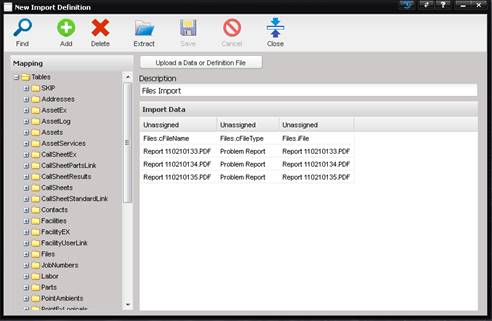
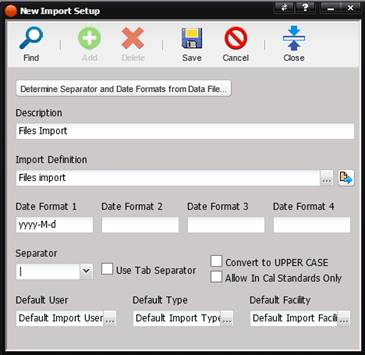
Load the data file into the Import Definition screen and assign the columns, to make the definition:
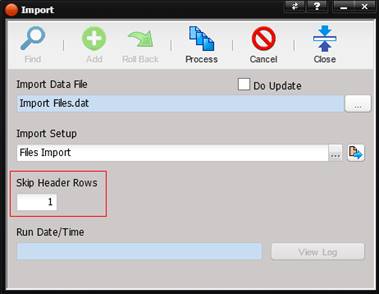
Since our data files contains headers as the first row, it is important to enter 1 into Skip Header Rows, so the import doesn’t interpret the headers as data.
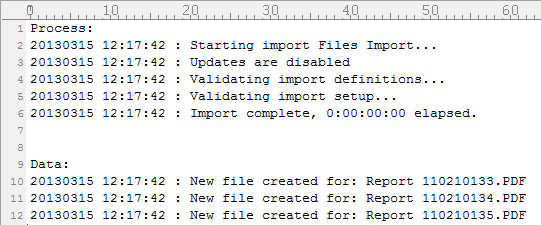
The log file should look
similar to this:
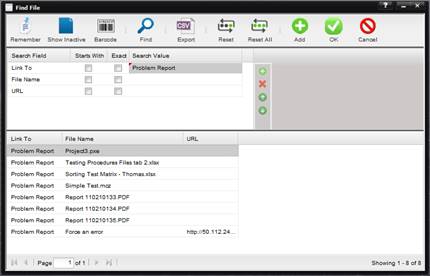
To access the new
files in MET/TEAM:
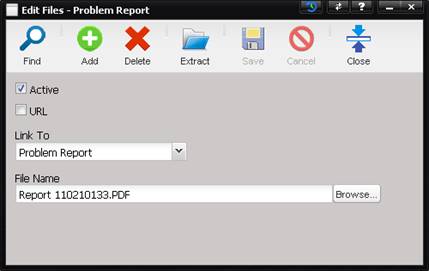
Note: You cannot currently update the file contents
from the Files screen by uploading a different file.