The COMPASS Data File import option is provided to allow MET/TEAM users to import data collected by COMPASS for Pressure or COMPASS for Flow directly into a MET/TEAM Work Order. COMPASS does not interact with MET/TEAM at any point in the process. Only the resultant data is imported. To properly link COMPASS devices with MET/TEAM assets, the COMPASS user should ensure that the DUT and Reference Identification fields in COMPASS correspond to the barcode field of active MET/TEAM assets. When the fields differ, a warning is displayed during the import process. Other than ensuring that this common identifying field is the same, there are no other special operations required of the COMPASS operator.
The imported data file generates a new set of Work Order Results that can be viewed using the MET/TEAM Results viewer. Any references or support devices in the COMPASS data file that have valid MET/TEAM barcodes are automatically added as standards associated with the Work Order.
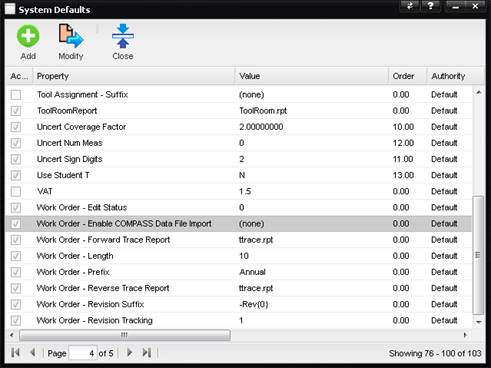
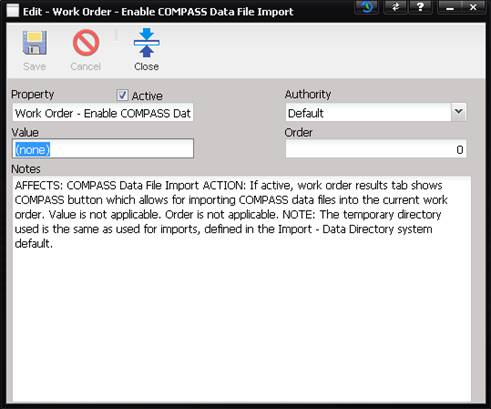
The COMPASS import is available on the Results tab of MET/TEAM Work Orders. As a result an asset must be received and a Work Order must exist before the import can be used. The System Default, Work Order - Enable COMPASS Data File Import must also be active to enable the option. The value field associated with the System Default does not apply.
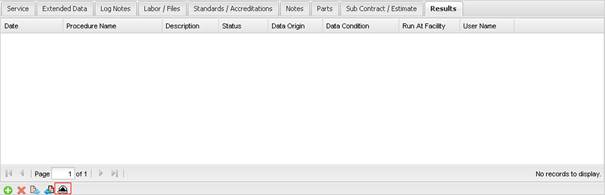
To import data press the COMPASS button on the bottom of the Results tab. A prompt is displayed to allow the data file to be selected. Press the ellipsis button and navigate to the desired COMPASS data file.
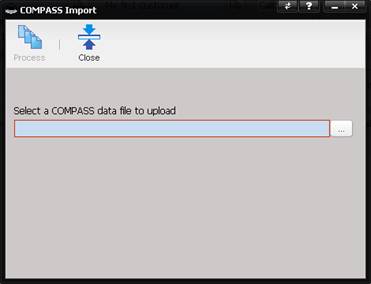
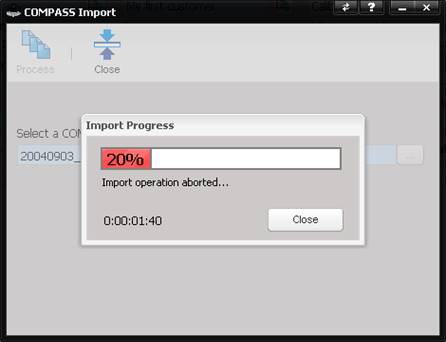
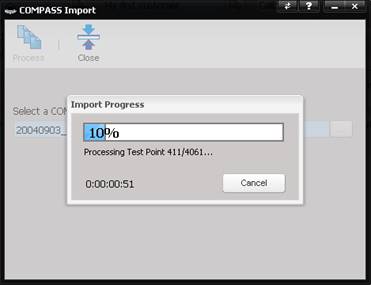
Press the Process button to import the selected file. A progress bar is displayed to show the current state of the import. Data files that have hundreds to test points may take a couple of minutes to process.
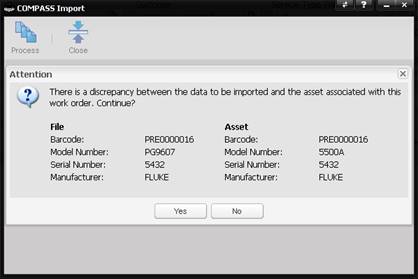
If there is a discrepancy between the data in the file and the asset associated with the current work order, a confirmation message is displayed. Review the discrepancy and press No to abort and choose a separate data file or press Yes to continue ignoring the discrepancy.
The file to be processed is uploaded to the server, into the same directory used for MET/TEAM imports, which is defined in system defaults.
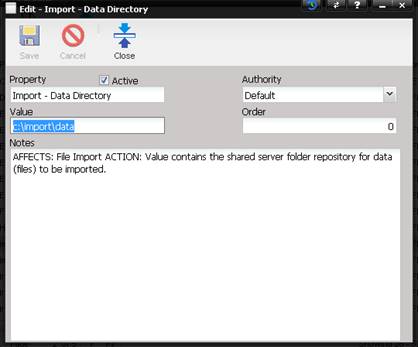
If the directory is not valid, a prompt to open system defaults is displayed.

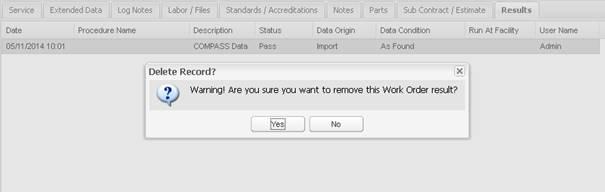
If the import is canceled, the points processed up to that point are present in the database. They can be removed by deleting the work order result that was created for this import.