To add Parts or Types, the Quote must first be saved. After saving, the Add Part and Add Type “+” button become enabled. Select either “+” button and the appropriate Find dialog is displayed for selecting the Part or Type.
If a Part is being added to the quote, the Create Quote Item – Part screen is displayed. When the quantity and price are entered, the Total is calculated.
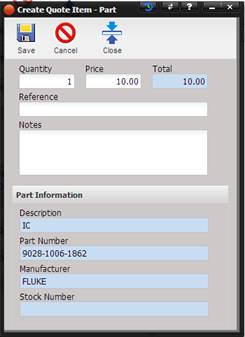
· Quantity – The number of Parts used for this quote.
· Price – The price the customer is being charged for the Part.
· Total – The calculated value of Quantity times the Price.
· Reference – The reference for this Part.
· Notes – Any notes pertaining to this Part.
· Description – The Part description pulled from the information about this Part. See Maintenance Parts menu option.
· Part Number – The Part number pulled from the information about this Part. See Maintenance Parts menu option.
· Manufacturer - The manufacturer of this Part number pulled from the information about this part. See Maintenance Parts menu option.
· Stock Number - The Part stock number pulled from the information about this Part. See Maintenance Parts menu option.
Once the information is complete, select the Save button. The Part is added to the Quote grid.
If a Type is being added to the Quote, the Create Quote Item – Type screen is displayed.
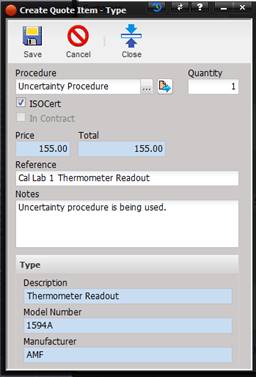
· Procedure – The Procedure associated with the selected type.
o The Procedure can be selected or changed by selecting the “…” button.
o The Procedure can be viewed by selecting the Quick Link button.
· Quantity – The number of Types being quoted.
· ISOCert – If checked the ISO Cert cost is included in the Total.
· In Contract – If checked, the Type is included in the Contract with this customer.
· Price – The price being charged to the customer to perform the Procedure specified for this Type. See the Procedure tab on the Types screen (navigate there by using the Maintenance Types menu option).
· Total – The calculated value of Quantity times the Price.
· Reference – The reference for this Type.
· Notes – Any notes pertaining to this Type.
· Description – The Type description pulled from the information about this Type. See Maintenance Types menu option.
· Model Number – The Model Number pulled from the information about this Type. See Maintenance Types menu option.
· Manufacturer - The Manufacturer of this Type number pulled from the information about this Type. See Maintenance Types menu option.
Once the information is complete, select the Save button. The Type is added to the Quote grid.
To delete a Part or Type, select the “X” button after highlighting the item to be deleted in the Quote grid.
To modify a Part or Type, highlight the item in the Quote grid and select the Quick Link button that displays the appropriate tool tip.