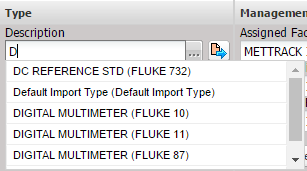
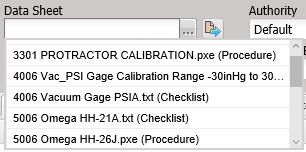
MET/TEAM includes the ability to perform auto lookups on fields that have the “…” button by typing the beginning letters of the information you wish to use to fill in the field. As you type, matching suggestions are presented below or above the field. Use keyboard up and down arrows to navigate to highlight your selection. Use the Enter key or click the highlighted item to accept your selection and display it in the field. If no selection is made, the field reverts to what was in the field prior to typing.
The following screenshot shows an example. The more that is typed, the finer the selection suggestions. The scroll bar allows for scrolling the selection.
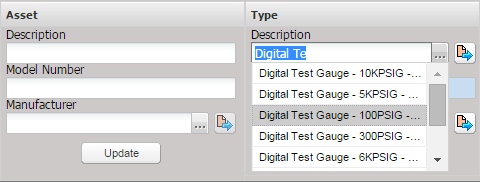
When using the auto lookup on a field that displays a User or a Contact, matches for either the first name or last name are displayed in the list. For example, if you type ‘A’ in the field, matches are shown where either the first name or the last name start with ‘A’.
A few of the auto lookup fields contain additional information in parentheses in the list of matching items in order to better distinguish them. When an item is selected, the information in parentheses is removed.
The following table identifies these special auto lookup fields.
|
Screen Name |
Field |
Description |
|
Assets |
Description |
The Description field in the Type section on the
Asset screen displays the Type description followed by the Manufacturer
and/or Model Number in parentheses, if available.
|
|
Procedures |
Data Sheet |
The Data Sheet field on the Procedure screen
displays the File Name followed by the File Type in parentheses. This field
is also limited to displaying only items with File Types of Procedure,
Checklist, or Manual Template.
|
|
Type Procedure Default |
Data Sheet |
The Data Sheet field on the Type Procedure Default
screen behaves the same as the Data Sheet field on the Procedure screen. |