Tech Assignment allows managers to assign open Work Orders to technicians. Managers can monitor and manage workloads for their technicians. This screen is resizable.
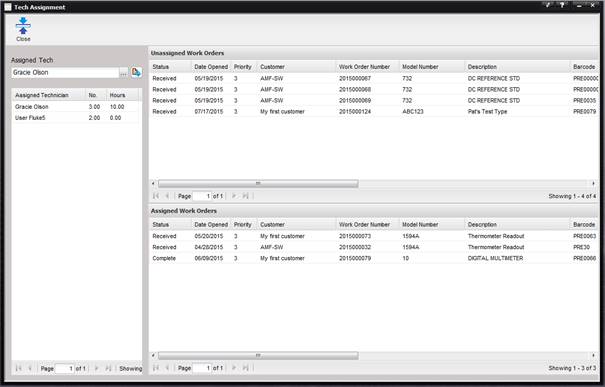
Only Work Orders that are assigned to the logged in user’s current facility are displayed on the Tech Assign screen. Work Orders are assigned to a facility from the Working Lab field on the Work Order screen. The user’s current facility is indicated in the upper right corner of the MET/TEAM™ screen.
Note: Any changes made between the Unassigned Work Orders
and Assigned Work Orders are saved immediately.
·
Assigned Tech
– Allows the user to select a technician. When the technician is selected the
Assigned Work Orders grid displays the current Work Orders assigned to the selected
technician.
o The Assigned Tech can be selected or changed by selecting the “…” button.
o The Assigned Tech can be viewed by selecting the Quick Link button.
· Assigned Technician Grid – Displays all technicians that have Work Orders assigned to them and the number of Work Orders assigned to them.
o To view the Work Orders assigned to a technician, highlight the technician in the grid.
o To assign Work Orders to a technician that does not appear in the grid, select the technician in the “Assigned Tech” box and assign at least one Work Order to that technician.
· Unassigned Work Orders – Displays a list of all open Work Orders that have not been assigned.
o To assign a Work Order, highlight the correct technician and double click the desired Work Order in the grid. The Work Order is moved to the “Assigned Work Orders” grid, showing it has been assigned to the highlighted technician.
o To save the assignments, select the Save button.
· Assigned Work Orders – Displays the Work Orders assigned to the highlighted technician.
o To un-assign a Work Order, double click the desired Work Order in the grid. The Work Order is moved to the Unassigned Work Orders grid.
o To save the changes, select the Save button.