The metcal.ini file contains an entry for the MET/TEAM URL. This URL typically consists of the name of the server and the port, although it could be the fully qualified domain name (FQDN) and port or it could be the server’s IP address and the port.
MET/CAL uses a Chrome based browser to access MET/TEAM web pages. For this reason, when the MET/TEAM URL includes a FQDN or IP address, you will be prompted to enter the Windows password for the current Windows user.
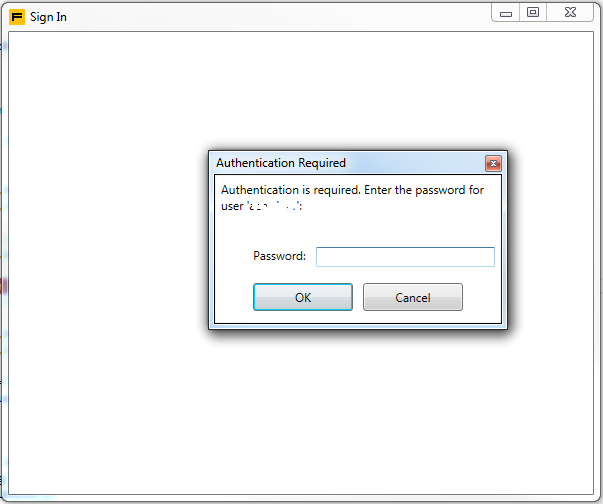
Because MET/CAL does not attempt to cache this password, it must be entered every time MET/CAL is launched, including when being launched from a MET/TEAM Work Order.
To avoid this authentication prompt, change the MET/TEAM URL in the metcal.ini file to use only the server’s name and port only (i.e. http://myserver:35853). Using this shortened URL should work, unless you are attempting to run MET/CAL over a VPN connection or in other specific situations.
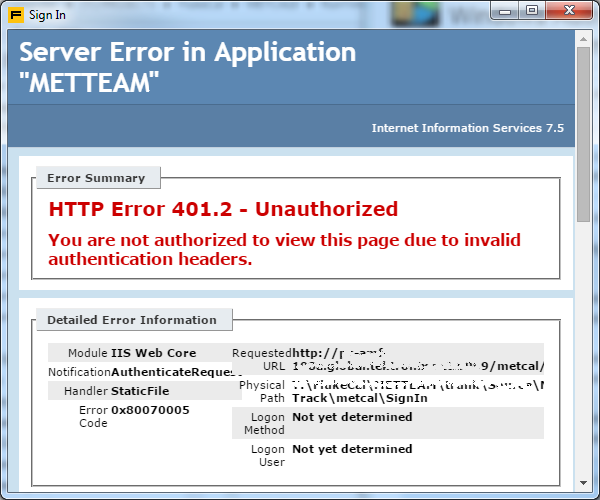
Clicking Cancel on this authentication dialog will abort the login process and display an HTTP Error 401.2 message in the Sign In window. Simply close this window by clicking the red “X” in the upper right corner.