Invoice Info
· Ship To – The Facility the items are shipped to.
o The Ship To Facility can be changed by selecting the “…” button.
o The Ship To Facility can be viewed by selecting the Quick Link button.
· Bill To (required) – When a Work Order is added, Bill To is auto filled with the current Asset Customer.
o If another customer needs to be billed for the work, select the “…” button to change the Bill To customer.
o To view the Bill To customer information, select the Quick Link button.
o The Bill To information does not change if a different Job Number is selected. The user must manually change the Bill To information by using the “…” button.
· Status – The status of the Invoice.
o The Status is automatically updated to “Closed” when the Amount Paid and the Total are the same (balance is 0).
o The Status can be changed until the “Closed” is selected.
· Account Type – Allows the user to define the kind of account (Net 10, Net 30, COD etc.).
· Invoice Number – The unique invoice number as generated by the system based on the System Default values; Invoice – Length, Invoice – Prefix, Invoice – Suffix.
· Invoice Date – The date the invoice was generated.
· Shipping/Handling – The amount of shipping and handling charges (no tax is applied to this value).
· Other Charges – Other charges incurred by the Service Facility which are passed on to the customer.
· Discount – A cash amount of discount.
· Sub Total – Sub Total of all the items in the invoice.
· Tax – The amount of the tax charged.
· VAT Amount – Value Added Tax, charged if the system default is active. The system default also controls the amount of the VAT.
· Total – The total of the invoice.
· Amount Paid – The amount paid on this invoice.
· Balance – The amount still owed on this invoice.
· Job Number - When a Work Order is added, Job Number is auto filled with the Job Number associated to the current Asset owner.
o To change the Job Number, select the “…” button. The Select Job Number screen is displayed. When the Find button is selected, the Job Numbers available to select from are filtered to the Job Number owner that matches the customer in the Bill To text box.
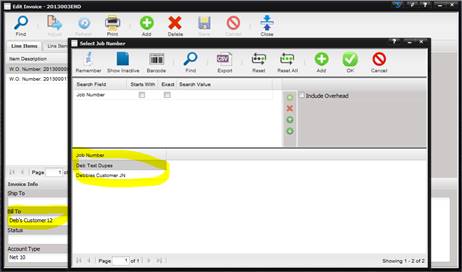
o The Job Number does not change if a different Bill To is selected. The user must manually change the Job Number by selecting the “…” button.
- Notes – Allows the service facility to enter notes that can be printed on the invoice.