The Import Definition allows for uploading a data or definition file to assist in assigning columns. The purpose of the definition is to assign columns to MET/TEAM table fields.
Note: MET/TRACK users can also upload a definition
file used with imp2.exe or Data Importation. While the fields are recognized
and translated, any import tied to assets requires manual augmentation since
MET/TEAM requires the type’s manufacturer, model, and description.
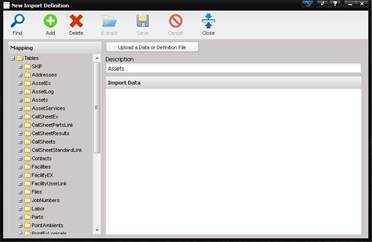
·
Mapping –
Lists the MET/TEAM tables that can be mapped to and the fields within the tables.
Press the “+” to expand the list of tables and fields underneath each table.
·
Description
– The description for this import
definition.
·
Import Data –
Displays the columns and assigned fields.
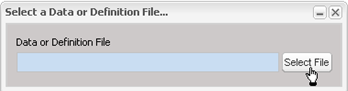
When the Upload a Data or Definition File button is selected, the Select a Data or Definition File… screen is displayed prompting the user to navigate to the file.
Assign fields to the columns by selecting the column in the grid and clicking a field in the tree.
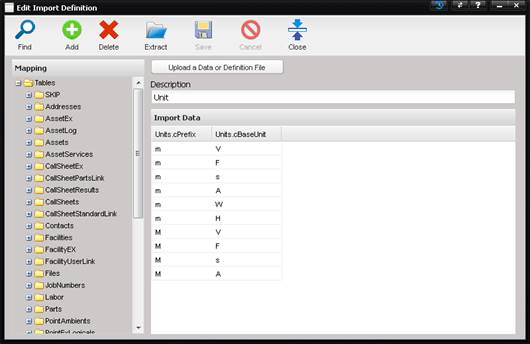
Repeat the process until all columns are assigned. To ignore a column of data, select the SKIP item from the SKIP node in the tree (shown as SKIP.SKIP on the header). The definitions are validated upon exiting the form, with a warning if the definition isn’t valid.

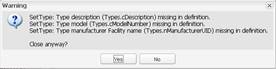
SKIP and fields in Addresses and CallSheetStandardLink tables can be selected more than once; other fields disappear from the selection tree once selected.
If the same data is needed for more than one MET/TEAM field, the data should be replicated (copy the column) so it can be assigned to additional fields. For example, an Asset’s manufacturer, model, and Type description usually match that of its Type. While the Type fields are required, the Assets are not. To import the same information into both, copy the three data columns and assign one set to the Type fields and the other to the Asset fields.