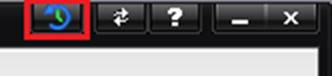
The history of changes made due to Auditing or Change Tracking being active, can be viewed by selecting the History Log button in the upper right hand corner.
1.
Enable the Change
Tracking System Default.
·
When Change
Tracking is active and Auditing is inactive, changes are logged to the
database. The user making the change is not prompted to enter a reason for the
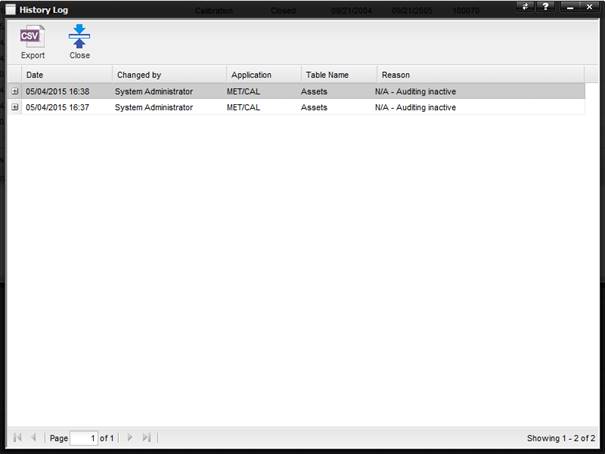
change. In this case, the History Log indicates “N/A – Auditing inactive” in
the Reason column because Auditing was inactive.
·
When Change
Tracking is active and Auditing is active, the user making the change is
required to enter a reason for the change.
2.
Go to the screen where
the history changes were made or that you are interested in viewing.
3.
Select the
History Log button next to the Refresh button on the upper right hand corner of
the screen.
4.
The History Log
dialog is displayed. Select the “+” on the left side to expand that particular
change and view the details. The information can be exported to a .CSV file
format by selecting the Export button.
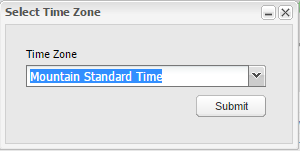
When exporting data to a CSV file, the Select Time Zone prompt is displayed. The drop-down lists all time zones with the same UTC offset as your current time zone. This is used to facilitate converting any exported dates to local time, including adjusting for Daylight Saving time, as applicable. Select the appropriate time zone to use for the export and click Submit to initiate the export process.
·
History Logs for
System Defaults can be viewed by editing the individual System Default and then
selecting the “History Log” button from that individual System Default. The
“History Log” button is not available on the System Defaults main screen.
·
History Logs for
Calendar can be viewed by editing the individual Calendar task and then
selecting the “History Log” button from that individual Calendar task. The
“History Log” button is not available on the Calendar main screen.
·
History Logs for
Data Checks can be viewed by editing the individual Data Check and then
selecting the “History Log” button from that individual Data Check. The
“History Log” button is not available on the Data Check main screen.
·
For tables that
have an accompanying “Ex” table, e.g. Assets and Asset Ex, history is generated
for the main record and/or the “Ex” record, in separate entries, depending on
what was changed.
·
Changes are not
tracked on the following:
o
Escalation Data
o
Work Order Files
Tab
o
Invoice Items
o
Shipment Items
o
Work Order Log