Adding Assets (individual serialized items)
- Select the Assets submenu from the Maintenance Menu.
- Select the Add button on the Find Asset screen. The Add Asset screen is displayed.
- The ID and Barcode are automatically generated.
- The minimum information required is the Type Description and Customer as indicated by the red squiggled text boxes.
- Select the Customer either by
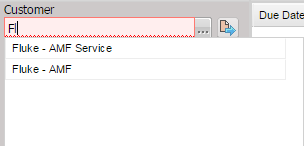
- Typing the first characters of the Customer name in the Customer box and a dropdown box appears from which you can select the Customer.
Or
- Selecting the “…” button next to the Customer text box. Select the Find button on the Find Facility screen and then select the Facility (Customer) for this asset.

- Select the Type Description by
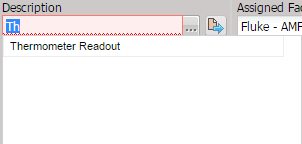
- Typing the first characters of the Type in the Type box and a dropdown box appears from which you can select the Type.
Or
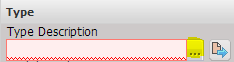
- Selecting the “…” button next to the Type Description text box. Select the Find button on the Find Type screen and then select the Type for this asset.
7.
Enter in a Serial
Number.
- When asked to “Update all Asset data with current Type data?” select Yes.
- If the Manufacturer is empty, start typing the first characters of the Manufacturer in the Manufacturer box and a dropdown box appears from which you can select the Manufacturer or select the “…” button next to the Manufacturer box and select the appropriate manufacturer.
Note: Other data can be
entered, however this is the minimum data that should be entered when creating
an Asset.
- Select the Save button.
- Select the Close button when done.
You should now have the minimum information needed to receive and process a piece of equipment.
Please refer to the appropriate sections of the Help for further data explanations and information.